Using Walr’s “No Code” solution, our highly customisable custom questions allow you to modify them without needing to understand any coding or programming. Everything is presented through options in our “Visualisation”, allowing you to adjust the question to get exactly the format you need.
What is it?
SEAL: Searchable Existing Answer List uses an answer list within the question, this information can be tabulated, but longer lists can have a performance impact, so recommended for up to 1000 rows max. There is no external reference file. This question will allow multiple selections, so is useful for e.g. brand awareness type questions.
See also "SAL: Searchable Answer List"
When to use it?
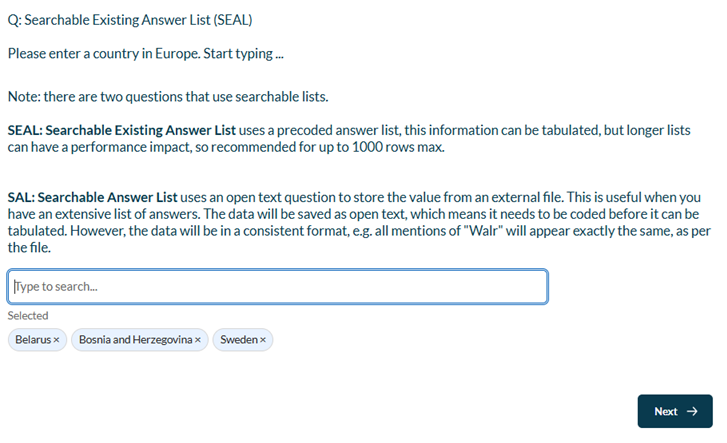
You have a long list of brands or you want people to start typing and the lookup text appear e.g.
Typing : wa
Would bring up all the options that have “wa” anywhere in the text.
What languages are supported?
All Survey Builder languages.
Note that you need to ensure that the options in the file/answer list are all in the languages that you will be running the survey in.
Can I test it?
Survey link SEAL: https://survey.walr.com/pXAMk7?qq=46
Data
The data would be available to tabulate as a standard single or multi response question.
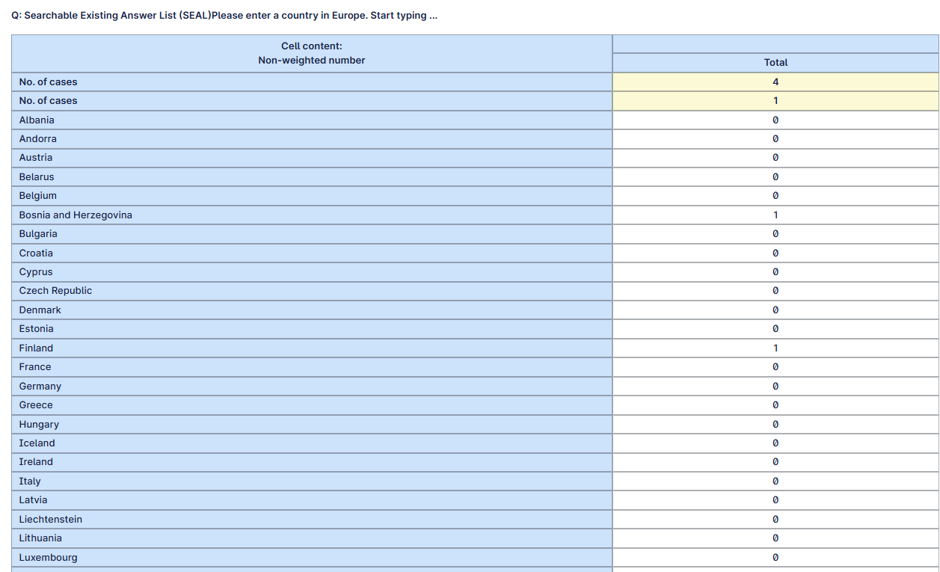
Example:
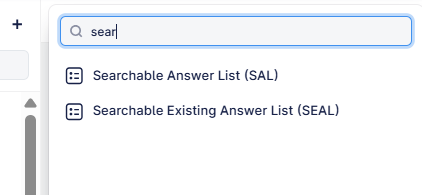
Setup:
The Searchable Answer questions can be found in the “Add New Element” section as shown.
Here is an example of how to set up the question.
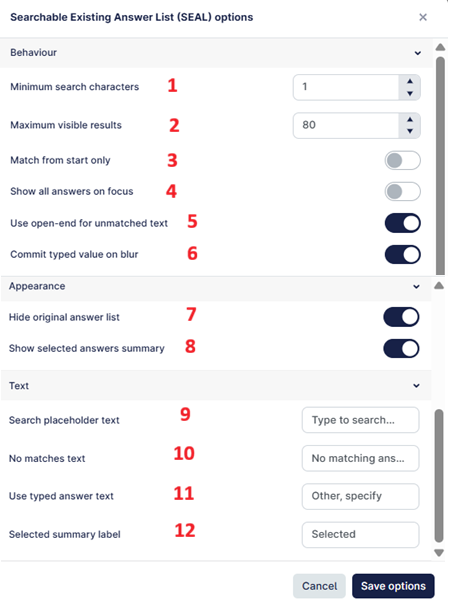
- The minimum number of characters before the search is run, we recommend at least 2 characters.
- Maximum number of answers to show in the popup box: e.g if you type "land" and there are 100 items, only the maximum you have shown here will be visible. This can be used to enforce specific text matching, so thta a single character will not show every possible item with that character.
- Match from the start rather than anywhere within the string.
- This shows the whole list as a dropdown without anything needing to be typed in.
- If anything is entered that is not on the list, it can be stored in an open end row - you must add this to your answer options.
- If toggled on, the selections in the data are only made when the focus onthe text box is lost. If toggled off, then each selection isinput into the data as soon as it is made. We would recommend this toggle is set to on.
- Shows the full answer list - useful for debugging or testing the question. Should not be visible when going live, unless you want the respondent to have two ways to answer the question.
- Shows a summary of the answers selected under the text box, otherwise answers are not visible.
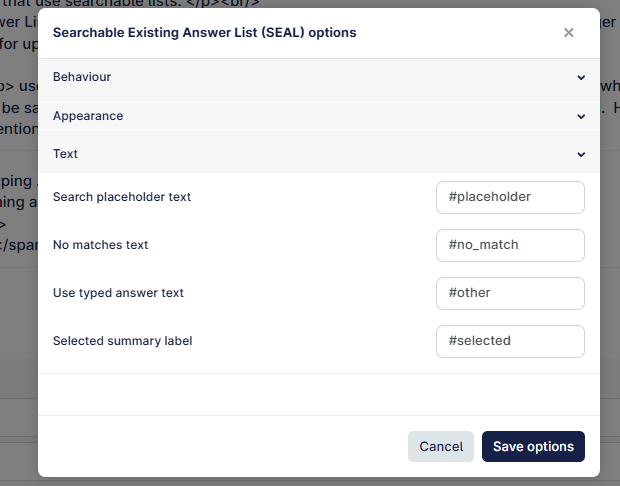
- This is the default text shown in the box e.g. "please start typing...".
- The text to show if there are no matches.
- The other code text.
- The label to show for selected answers.
For options 9-12 you can set the text directly in the visualisation boxes, but if you have a multi-language study, then it is best to use placeholders for the text elements so they can be translated.
Here is how you would set up the question
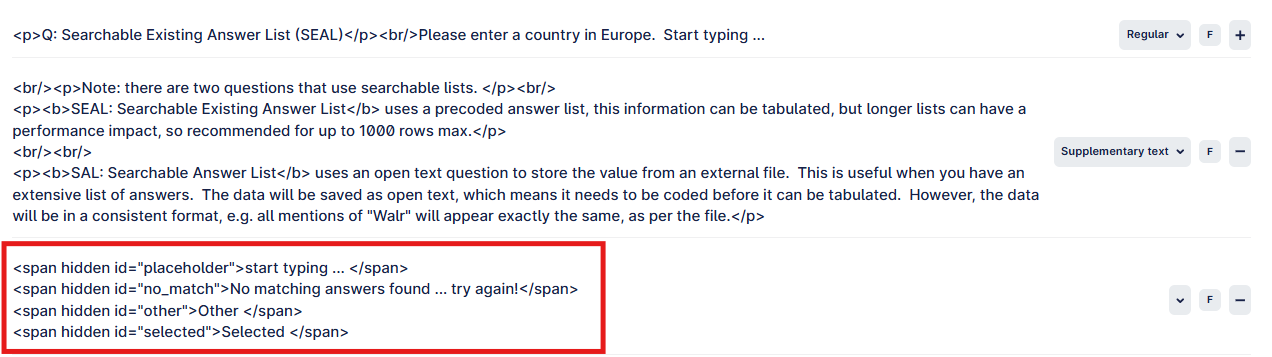
And the visualisation: