
Using Walr’s “No Code” solution, our highly customisable custom questions allow you to modify them without needing to understand any coding or programming. Everything is presented through options in our “Visualisation”, allowing you to adjust the question to get exactly the format you need.
What is it?
A question that allows people to rank answers in order. Each row is a clickable option, with support for exclusive options (reset others), custom rank labels, min/max selection limits, auto-next on max, and a configurable Reset button.
When to use it?
Use for choice ranking tasks (top-N picks, priority lists, or preference order) where you want respondents to pick and order a limited number of items rather than rate everything.
Can I test it?
Survey link: https://survey.walr.com/pXAMk7?qq=2
What languages are supported?
All Survey Builder languages.
Custom messages should be provided via the question so they can be translated (example provided below).
Data
The underlying question type for this question is a numeric.

In our Analysis & reporting tool:
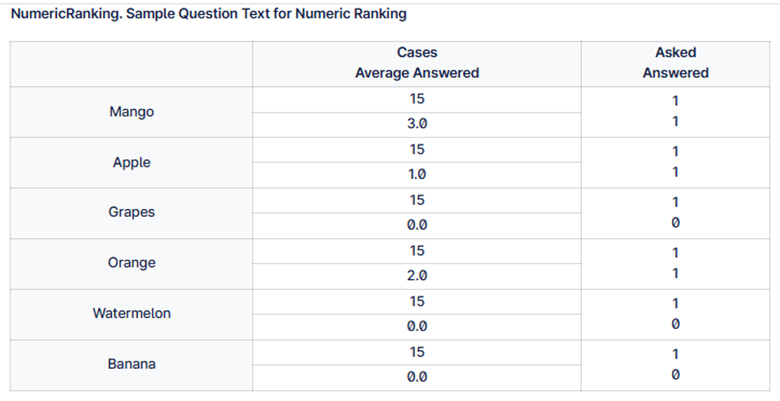
Example:
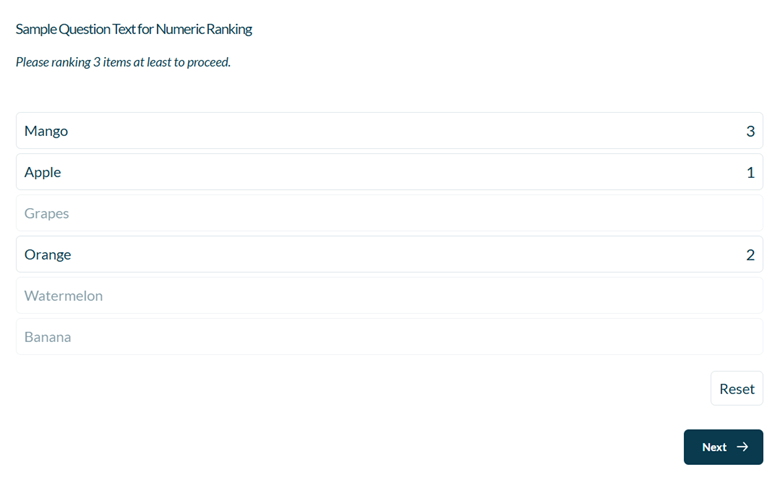
Setup:
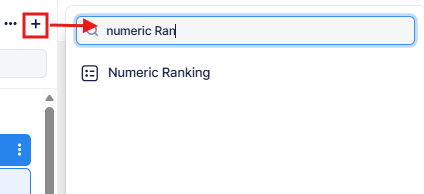
The Numeric Ranking can be found in the “Add New Element” section as shown.
Here is an example of how to set up the question.
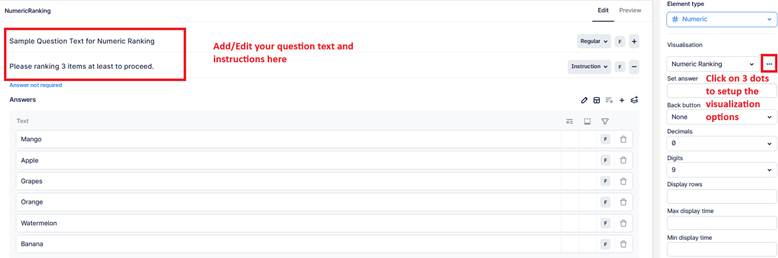
This question converts a standard multi-select list into a Click-to-Rank interface with minimum and maximum selection control.
Note: this question is automatically set to “Answer not required” this is by design as the number of answers required can vary and is set via the visualisation options below (#4 & #5).
Respondents click items to assign ranks in order (1, 2, 3…). Clicking again removes the rank and reorders remaining items automatically.
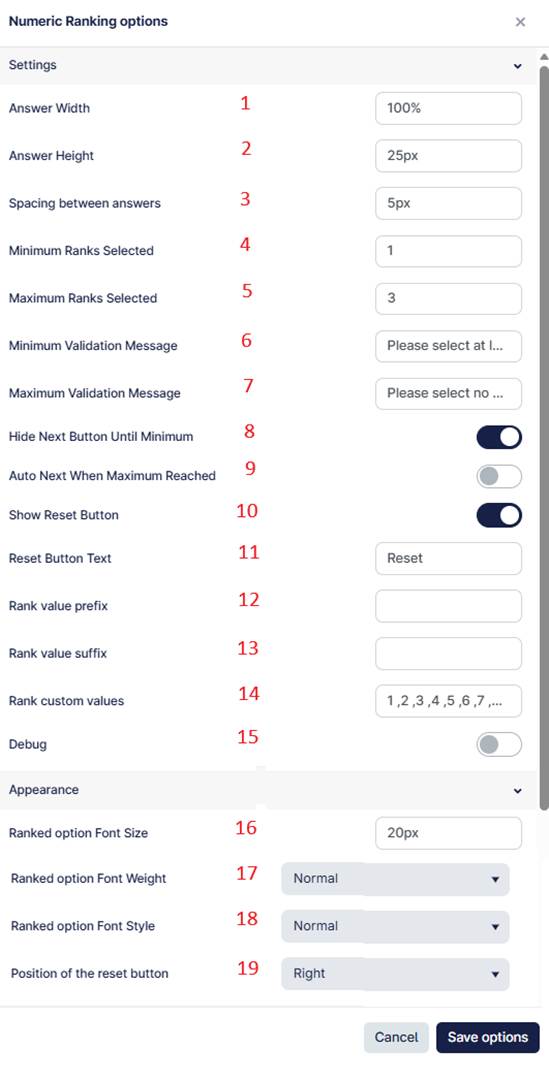
- Defines the width of each answer item.
- Defines the height of each answer item.
- Sets the spacing between answer rows.
- Defines the minimum number of items that must be ranked.
- Defines the maximum number of items that can be ranked.
- Message displayed when fewer than the minimum number of items are selected.
- Message displayed when more than the maximum number of items are selected.
- When enabled, hides the Next button until the minimum selection requirement is met.
- When enabled, automatically proceeds to the next question once the maximum number of selections is reached.
- When enabled, displays a Reset button.
- Defines the text shown on the Reset button.
- Text displayed before the rank value (e.g., “Rank ”).
- Text displayed after the rank value (e.g., “ place”).
- Defines custom rank labels as a comma-separated list (e.g., 1st, 2nd, 3rd...). These replace the default numeric ranks.
- If custom rank values are provided:
- The first selected item shows the first custom label.
- The second selected item shows the second custom label, and so on.
- When enabled, reveals the underlying hidden numeric inputs used to store rank values. It can be used for debugging purposes.
- Sets the font size of the displayed rank number.
- Sets the font weight of the rank number (Normal/Bold).
- Sets the font style of the rank number (Normal/Italic).
- Controls the alignment (Left, Center, Right) of the Reset button.
How It Works
- Clicking an item assigns it the next available rank.
- Clicking a ranked item removes its rank and reorders remaining ranks automatically.
- Exclusive options (if configured in the survey) reset all other ranks when selected.
- If the maximum selection limit is reached:
- Additional items appear visually dimmed.
- Further selections are prevented.
- Validation ensures minimum/maximum rules are respected before proceeding.
Additional usage
If you need to specify the number of ranks based on the answer to a previous question.
In the example below, you can pipe in a numeric value where you have recorded a count of answers to set the maximum number allowed.
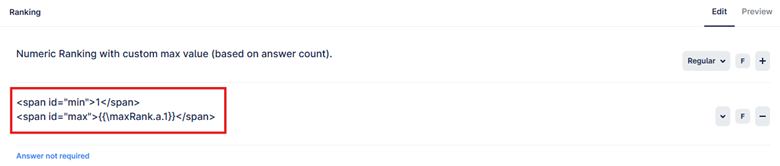
In the visualization options, you will need to reference these ids like below.
Hardcoded values are referencing the id directly
If you have defined a value, then just reference the id e.g. #min
Piped values need the id and the “.cRef” class name to be able to read the value.
