Using Walr’s “No Code” solution, our highly customisable custom questions allow you to modify them without needing to understand any coding or programming. Everything is presented through options in our “Visualisation”, allowing you to adjust the question to get exactly the format you need.
What is it?
Converts a numeric question into a slider, with the ability to add multiple elements on the same page, if they share the same scale.
When to use it?
When you need an interactive question rather than a numeric input, works well on touch devices (mobile, tablet).
Note that there are multiple versions of the Numeric Slider. All can be used interchangeably within a survey as you need.
Numeric Slider (Standard): this is used when you have a simple slider that uses numeric values as labels. Can include an opt-out per slider.
Numeric Slider (Standard) with exc : this is used when you have a simple slider that uses numeric values as labels. As well as an opt-out per slider, you can also enable a page level exclusion, which would clear the answer for all sliders on the page.
Numeric Slider (Custom Text) : this operates in the same way as the Standard slider, additionally allowing the labels of the slider to be changed to custom labels.
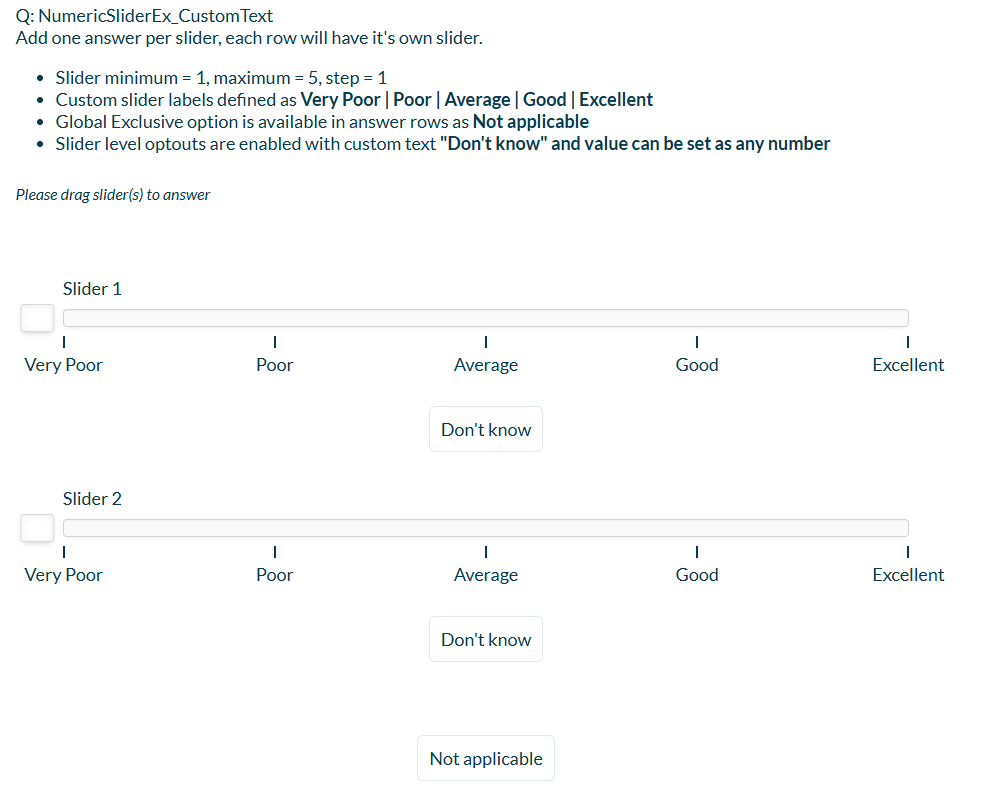
Numeric Slider (Custom Text) with exc : this operates in the same way as the Standard slider, additionally allowing the labels of the slider to be changed to custom labels. As well as an opt-out per slider, you can also enable a page level exclusion, which would clear the answer for all sliders on the page.
Can I test it?
Survey link: https://survey.walr.com/pXAMk7?qq=18
Data
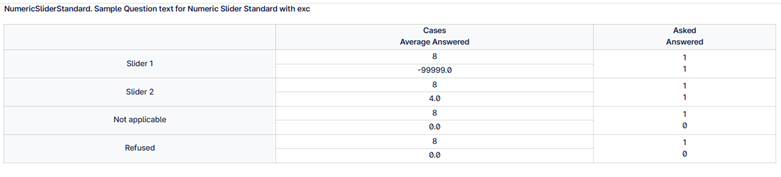
The underlying question type for this question is numeric, so each slider will have numeric data recorded as below in the data view.

In our Analysis & reporting tool:
Example:
Setup:
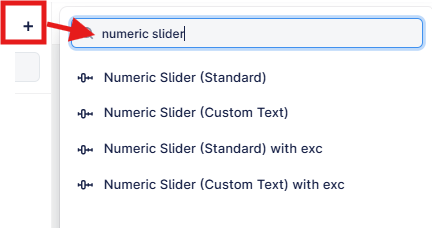
The Numeric Sliders can be found in the “Add New Element” section as shown.
Here is an example of how to set up the question.
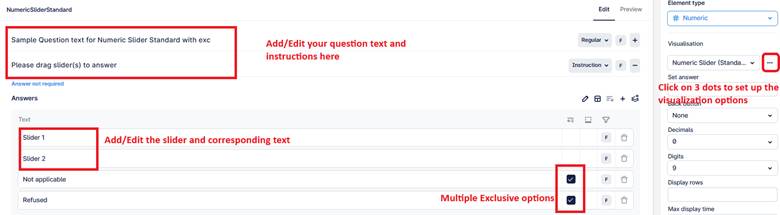
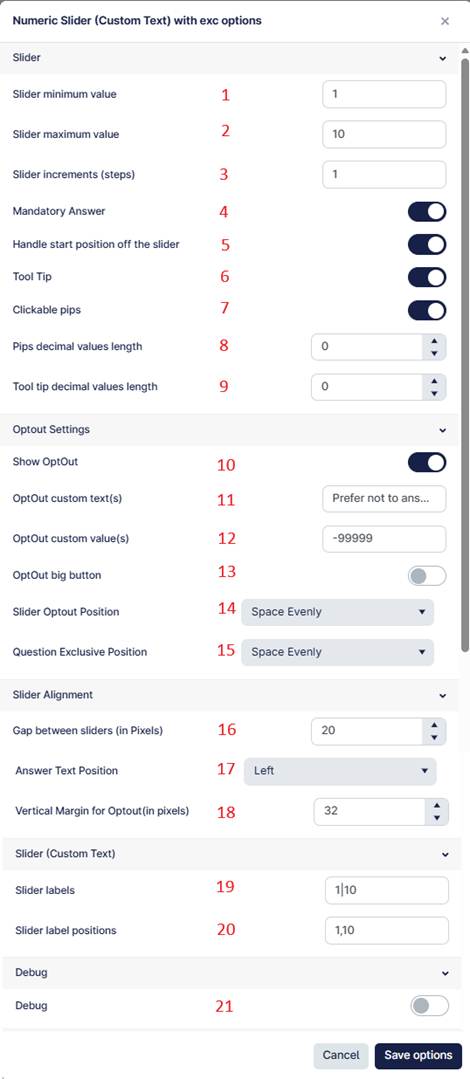
This question uses a Slider layout, where respondents select numeric values using interactive sliders, with optional tooltips, clickable scale points, and opt-out functionality.
Each row you add in the question, will automatically generate a new slider using the same scale and opt-out options.
Note: this visualisation is for the Numeric Slider (Custom Text) with exc, which has 2 additional options in the section “Slider (Custom Text).
- Defines the minimum value of the slider scale.
- Defines the maximum value of the slider scale.
- Specifies the increment (step size) the slider moves with each adjustment.
- When enabled, respondents must provide a valid slider value (or opt-out) before proceeding.
- When enabled, the slider handle starts slightly outside the scale until the respondent interacts with it.
- When enabled, a tooltip displays the selected value above the slider handle.
- When enabled, respondents can click directly on scale markers (pips) to select a value.
- Sets the number of decimal places displayed on the scale markers (pips).
- Sets the number of decimal places shown in the tooltip value.
- When enabled, displays one or more opt-out buttons below each slider.
- Defines the custom text for opt-out button(s). Multiple options can be separated using ‘|’
- Defines the numeric value(s) assigned to opt-out selections. Multiple values can be separated using ‘|’
- When enabled, opt-out buttons expand to visually match the slider width.
- Controls the horizontal alignment of the slider opt-out buttons.
- Controls the horizontal alignment of the exclusive (question-level) opt-out button.
- Sets the vertical spacing (in pixels) between multiple sliders.
- Controls the alignment (left, center, right) of the answer text above each slider.
- Sets the vertical spacing (in pixels) between the slider and its opt-out buttons.
- Defines the custom label text shown on the slider scale. Labels should be separated using | and will replace the default numeric scale text.
- Defines the exact slider positions where labels should appear. Values should be separated using commas or | (for example: 1,5,10).
- When enabled, displays the underlying numeric input fields for debugging purposes.
For Example:
Slider Min Value = 1, Slider Max Value = 10, Slider label positions =”1,5,10”, Slider labels =” Low|Neutral|High”
In this setup:
- A label appears at value 1 as "Low"
- A label appears at value 5 as "Neutral"
- A label appears at value 10 as "High"
If the number of positions and labels do not match, labels may repeat or display incorrectly. Always ensure both settings are logically aligned.