Using Walr’s “No Code” solution, our highly customisable custom questions allow you to modify them without needing to understand any coding or programming. Everything is presented through options in our “Visualisation”, allowing you to adjust the question to get exactly the format you need.
When to use it?
When you have a number of attributes you want people to assign value to. This can be used as a standard numeric sum question, or it can be used to assign importance via a series of points. Can include negative numbers to signify lesser importance. The total score must sum to your defined total.
For example:
- Product packaging evaluation
- Advert or creative testing
- Website or app layout feedback
- Identifying liked or disliked elements of a product
- Testing which areas are clear, confusing, relevant, or appealing
What languages are supported?
All Survey Builder languages.
The visible text, validation messages, button labels, and category labels can be adjusted through the question setup.
Can I test it?
Survey link: https://survey.walr.com/pXAMk7?qq=42
Data
The underlying question type for this question is a numeric. Which will capture the data for each category or row.

In our Analysis & reporting tool:
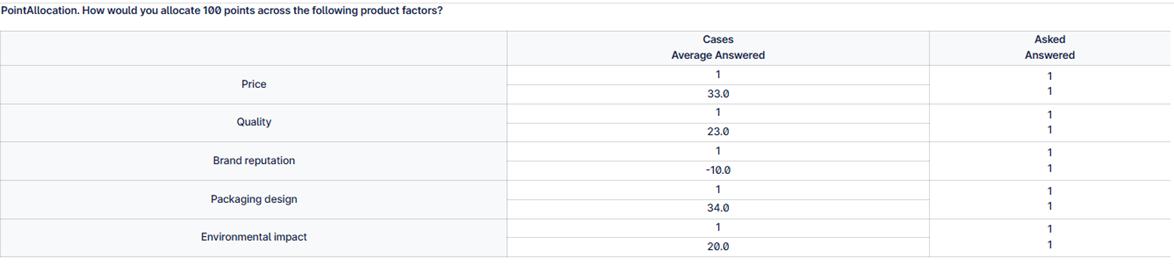
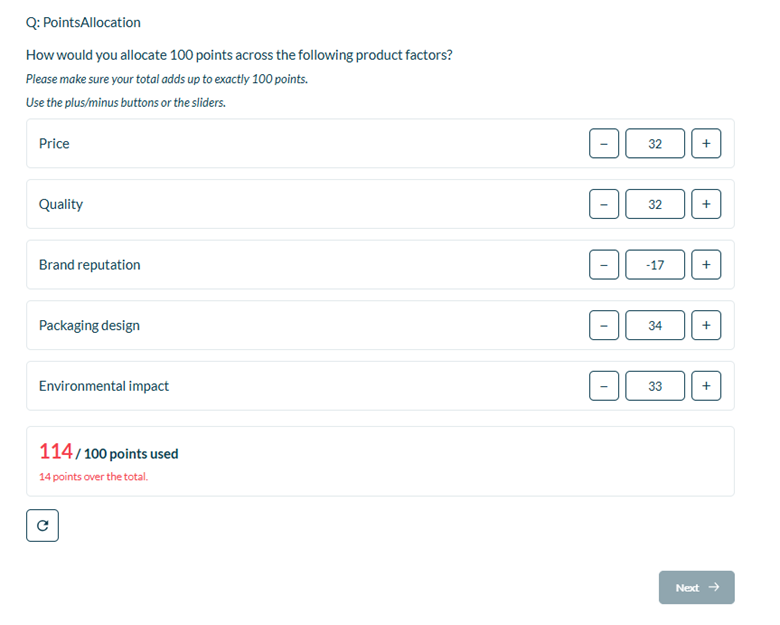
Example:
Without Sliders:
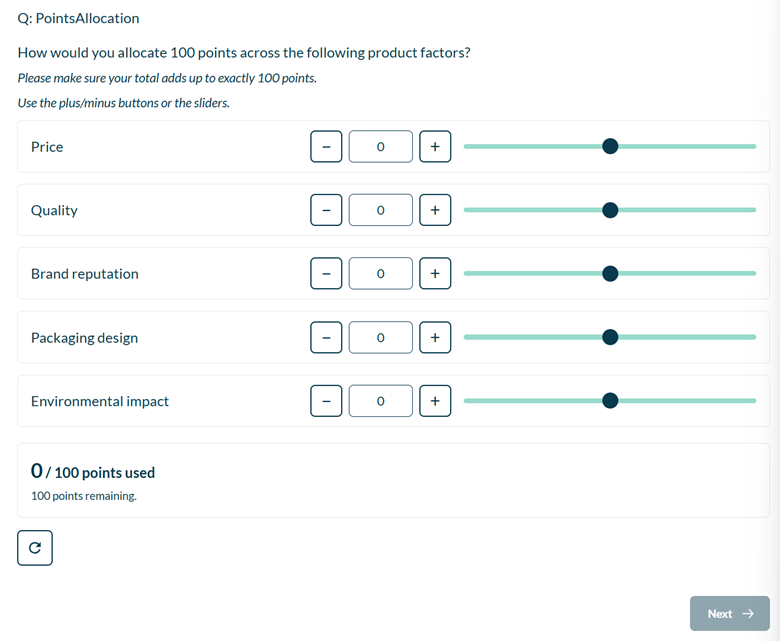
With Sliders:
Setup:
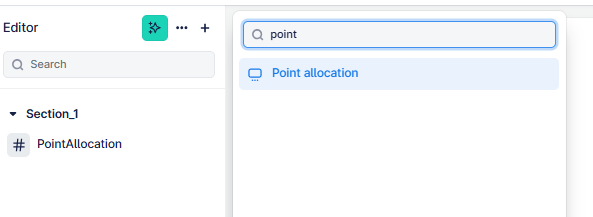
The Point Allocation can be found in the “Add New Element” section as shown.
Here is an example of how to set up the question.
IMPORTANT NOTE: To see all the setting options below, you need to ensure that “rich text” is set to off, so you can see the html, otherwise you will see a limited view.
Please review this article for more information.
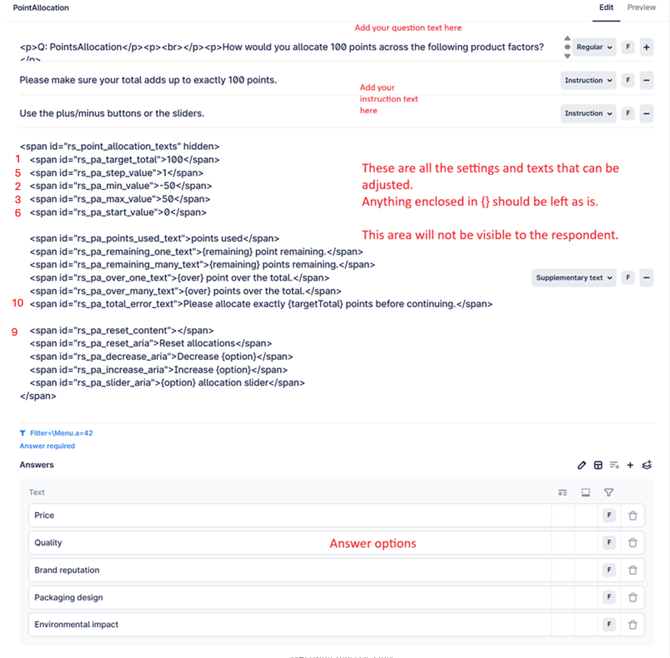
Visualisation Options:
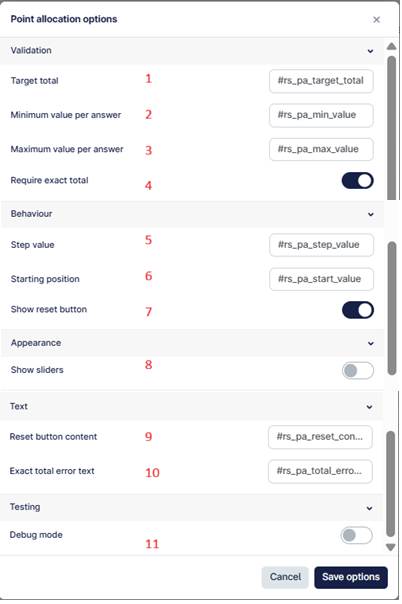
Note that options 1,2,3,5,6,9,10 are all visible on the question itself and use placeholders that can be edited directly [see image above].
This is to allow for any translations to be picked up and converted as needed. You can hardcode these in the visualisation options, but they will not be translated.
Where there is any text enclosed in {} e.g. {option}, this should be left as is – this is a variable that pipes in a different value, and if you change these then the functionality will not work.
You can also hover over the options below to see an explanation.
- Target total: The total number of points the respondent must allocate
- Minimum value per answer: The lowest number of points that can be allocated per answer, these can also be negative values
- Maximum value per answer: The highest number of points that can be allocated per answer
- Require exact total: Disable the Next button until the exact total is allocated
- Step value: The increment or step value each time the +/- buttons are clicked
- Starting position: The initial value each answer starts at, this value is not stored in data, the respondent must move the slider, type response or use+/- before a value is stored. The starting position can also be a negative number
- Show reset button: Shows the rest button which will clear all the answers and rest the question to default
- Show sliders: Can show sliders alongside the boxes, which can make for a more interactive question
- Reset button content: How the reset button is displayed. Provided format is an icon, but this can be changed to your preferred one or text
- Exact total error text: The error shown when the exact total value is not selected
- Debug mode: Shows the original numeric question as well as the visualization, showing you how the data is set in the background. For testing purposes only, and should be disabled when your survey is live