Using Walr’s “No Code” solution, our highly customisable custom questions allow you to modify them without needing to understand any coding or programming. Everything is presented through options in our “Visualisation”, allowing you to adjust the question to get exactly the format you need.
What is it?
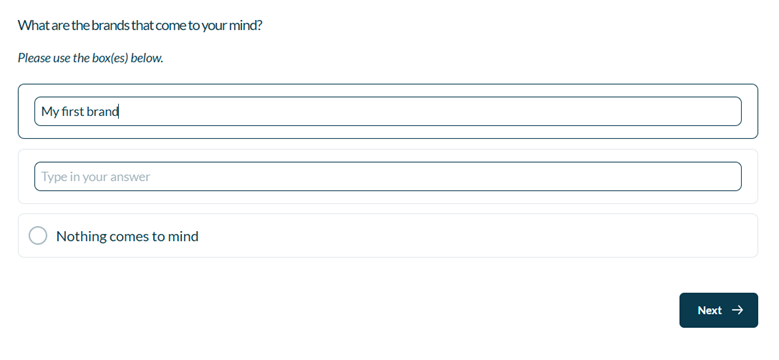
Asking unprompted awareness with multiple text boxes that can be shown one at a time, or all at once. Additional logic checks to avoid the same answer being typed into multiple boxes, including a minimum or maximum character length.
When to use it?
If you need to ask unprompted awareness type questions, or want to present a list of optional open end boxes.
What languages are supported?
All Survey Builder languages.
Can I test it?
Survey link: https://survey.walr.com/pXAMk7?qq=6
Data
The underlying question type for this question is a multiple open end, so each answer row will have data recorded as below in our Analysis & reporting tool. The open end responses can be viewed in the data view.
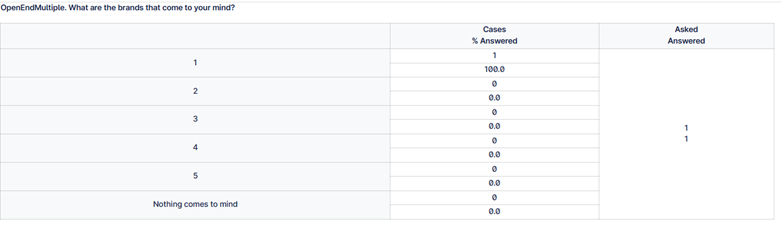

Example:
Setup:
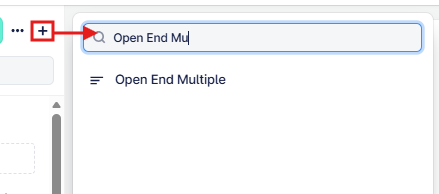
The Open End Multiple can be found in the “Add New Element” section as shown.
Here is an example of how to set up the question.
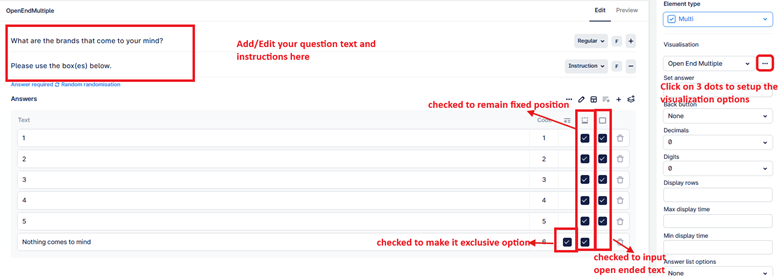
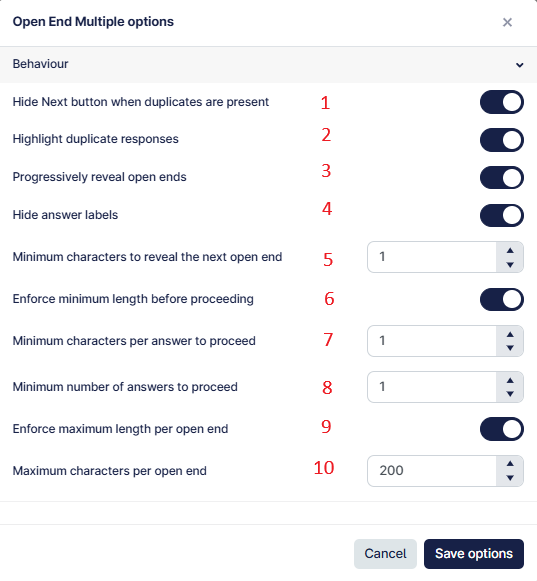
This question uses a Dynamic Multi Open-End layout, where respondents can enter multiple responses with built-in duplicate control, progressive reveal, and submission validation.
- When enabled, the Next button is hidden if duplicate typed responses are detected and highlighting is automatically activated in this mode.
- When enabled, duplicate responses are visually highlighted to help respondents identify repeated entries e.g. Brand 1 is entered in box 1 and Brand 1 is also entered in box 2.
- When enabled, only the first open-end is shown initially. Additional fields appear as the respondent types. If disabled, all open-ends are visible from the start.
- When enabled, the answer label/text area is hidden for a cleaner layout.
- Specifies the minimum number of characters required in the current open-end before the next open-end is revealed (used only when (#3) progressive reveal is enabled).
- When enabled, respondents must meet minimum character requirements before proceeding.
- Defines the minimum number of characters required in an individual open-end for it to qualify as a valid response.
- Specifies how many open-ends must meet the minimum character requirement before the Next button is enabled.
- When enabled, each open-end input is restricted to a maximum number of characters.
- Defines the maximum number of characters allowed per open-end response.