Using Walr’s “No Code” approach, this custom question allows an audio file to be played inside the survey with controlled playback rules. The question can be configured through the Visualisation options without changing the code.
What is it?
An Audio player that uses Walr’s File library to host and play audio files.
When to use it?
If you have any audio that needs to be inside the survey and do not want to use other media platforms.
What languages are supported?
All Survey Builder languages. Note the content of the audio will not be translated.
Can I test it?
Survey link: https://survey.walr.com/pXAMk7?qq=8
Data
There is no data as such stored for the audio, instead we can show a follow-on question that can ask the respondent anything about the video. By default, this question asks if the media played without issues, but cna be changed. This question can be disabled.
The question uses a standard selection question structure with:
- Regular question text
- Supplementary question text
- Answer options
Typical example:
Regular question text
Please listen to the audio, thank you!
Supplementary question text
Did the audio play fine, without any issues?
Answers
Yes
No
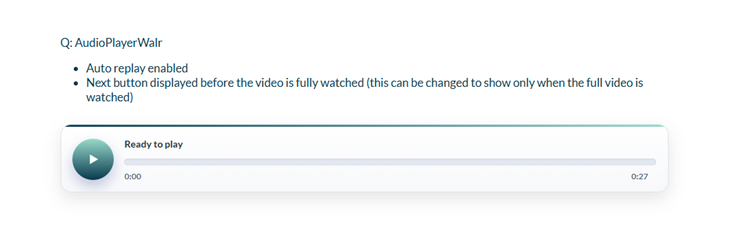
The supplementary text and answers are hidden at first and are only shown when the required listening point is reached, unless the question is set to auto-select the first answer.
Example:
Set-Up
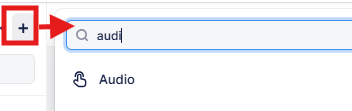
The Audio Player can be found in the “Add New Element” section as shown.
The player uses a full direct audio URL and supports standard browser audio playback through HTML5 audio.
Example file types commonly supported:
- MP3
- WAV
- OGG
- M4A
- audio-only MP4
MP3 is the safest option for general use.
Option summary
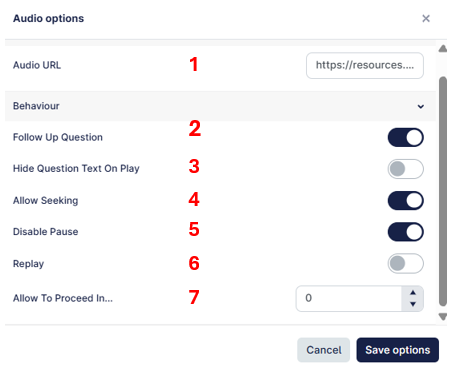
- Audio URL
Defines the audio file to play. A full direct URL should be used. This file can be uploaded to your <<File Library>> and referenced from there using the full URL. - Follow Up Question
When enabled, the supplementary text and answers are shown once the required listening point is reached.
When disabled, the first answer is automatically selected instead. - Hide Question Text On Play
Hides the regular question text once the audio starts playing. - Allow Seeking
Allows the respondent to move backward or forward using the progress bar. - Disable Pause
Prevents the respondent from manually pausing the audio. - Replay
Allows the respondent to replay the audio after it finishes. Replay is manual only. - Allow To Proceed In...
Controls when the Next button becomes available.
If set to 0, the respondent must wait until the audio finishes.
If set to a number above 0, the respondent may continue after that many real listened seconds.
Important behaviour
The Audio Player uses real listened time rather than simply checking the playback position.
This means:
- the Next button can be delayed until enough of the audio has been listened to
- replay is optional
- pause can be blocked
- seeking can be allowed or blocked depending on setup
When the unlock condition is met:
- the Next button is shown
- the supplementary text and answers are shown, or
- the first answer is auto selected, depending on setup
Notes
- MP3 is recommended for best compatibility.
- On iPhone / iOS, replay handling has been adjusted so playback restarts more reliably after the audio ends.
- When strict listening control is required, it is recommended to keep Disable Pause on and Allow Seeking off.