Using Vimeo’s “No Code” solution, our highly customisable custom questions allow you to modify them without needing to understand any coding or programming. Everything is presented through options in our “Visualisation”, allowing you to adjust the question to get exactly the format you need.
What is it?
A video player that integrates with video platform Vimeo to host and play video files.
When to use it?
If you have any video that needs to be inside the survey and have a Vimeo account. Note you will need your own Vimeo account to use this question.
What languages are supported?
All Survey Builder languages. The content of the video will not be translated.
Can I test it?
Survey link: https://survey.walr.com/pXAMk7?qq=14
Data
The underlying question type for this question is a single punch but answer rows would be hidden from respondents as default. So, no data will be captured.

In our Analysis & Reporting tool you can view it as raw data.
Example:
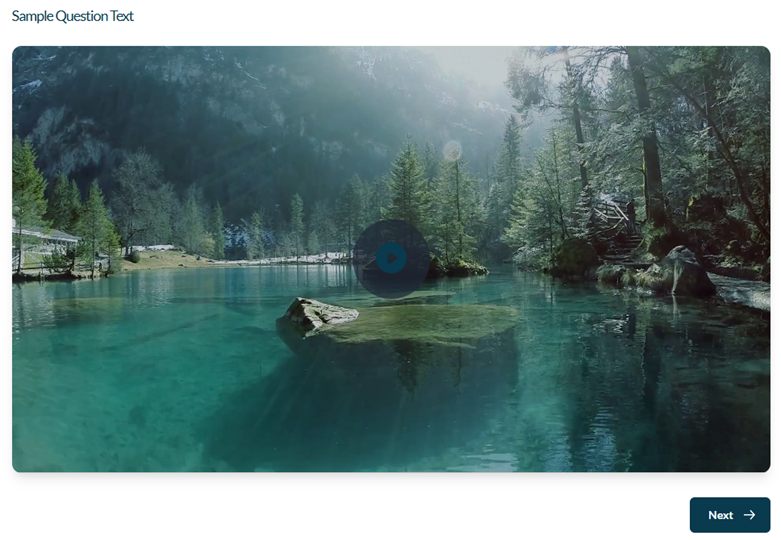
Setup:
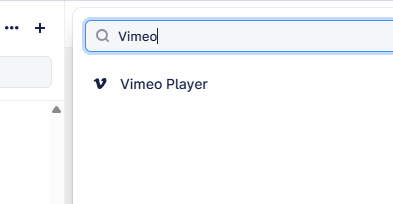
The Video Player can be found in the “Add New Element” section as shown.
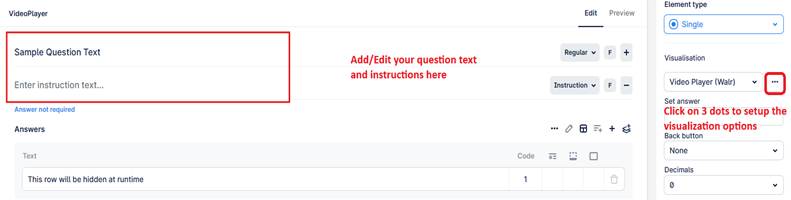
Here is an example of how to set up the question.
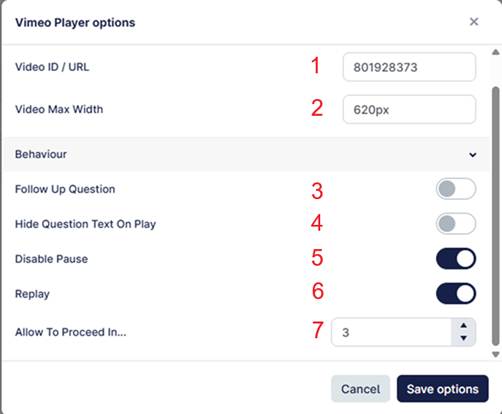
- Upload the video asset (file) to Vimeo (library), copy the generated ID/URL, and paste it into the setup section under “Video URL”.
- Set maximum with of the video form
- Toggle ON if you want to allow users to be asked about the video
- Toggle ON if you want to HIDE the question text while video is playing
- Toggle ON if you want to allow users to pause the video while it is playing.
- Toggle OFF if you do not want the video to replay, once it has finishes.
- Set the timer (in seconds) to control when the user is allowed to proceed (i.e., when the Next button appears) while the video is playing.
- Enter “0” force video to be fully watched.
- Enter 4 if the user should be allowed to proceed after watching 4 seconds of the video.