Using Walr’s “No Code” solution, our highly customisable custom questions allow you to modify them without needing to understand any coding or programming. Everything is presented through options in our “Visualisation”, allowing you to adjust the question to get exactly the format you need.
What is it?
Visualisation that adds a star-rating module that renders rows of clickable stars (configurable count) with optional half-star support and an Opt-Out button. It writes the chosen value into hidden inputs, so the survey captures the numeric rating.
When to use it?
Use to ask satisfaction / preference rating tasks (e.g., ad likeability, feature importance, product rating) where a compact, visual rating control is preferred over direct displaying numeric fields.
Can I test it?
Survey link: https://survey.walr.com/pXAMk7?qq=3
Data
The underlying question type for this question is numeric.

In our Analysis & reporting tool:
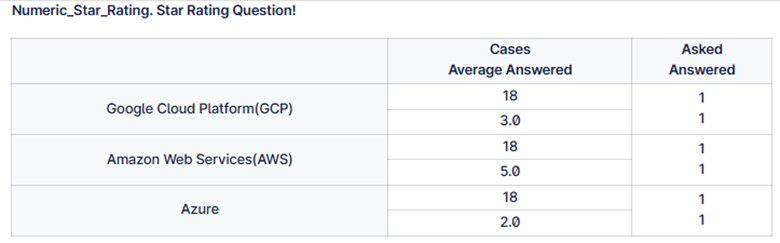
Example:
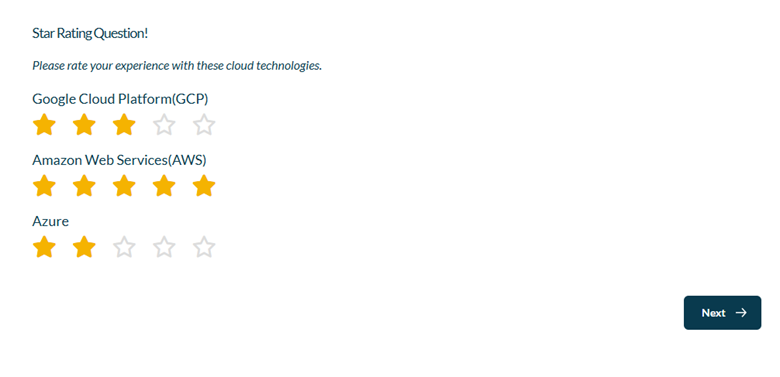
Setup:
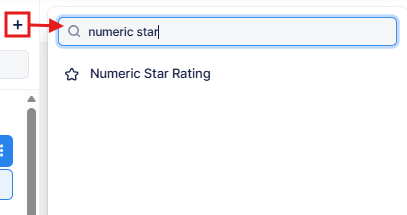
The Numeric star rating can be found in the “Add New Element” section as shown.
Here is an example of how to set up the question.
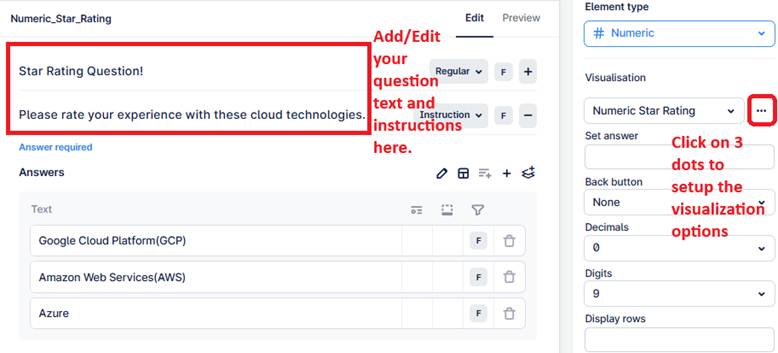
This question converts a standard numeric input into an interactive star rating interface.
Respondents select a rating visually using stars (with optional half-star precision and opt-out support), while the selected value is stored in the underlying numeric field.
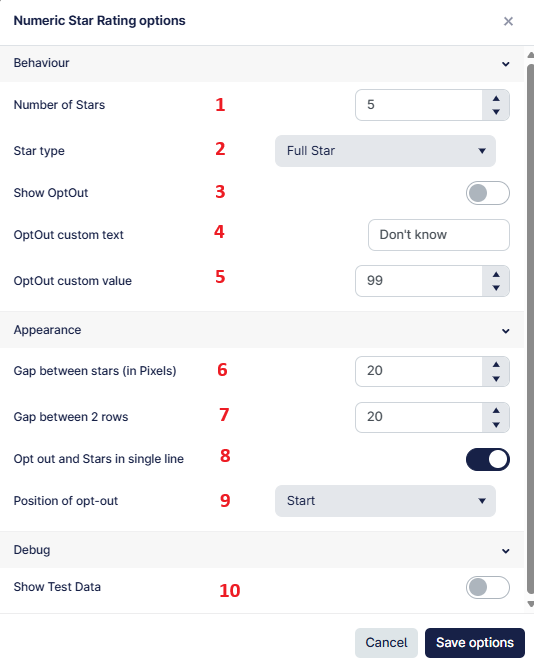
- Number of stars defines the maximum rating scale (e.g., 5-star, 7-star).
- Star type controls whether users can select full stars only or half-star increments.
- Opt-out option can be enabled to allow respondents to skip rating.
- Opt-out custom text allows defining the label shown (e.g., “Don’t know”, “Cannot evaluate”).
- Opt-out custom value defines what numeric value is stored when opt-out is selected.
- Gap between stars controls spacing for visual clarity.
- Gap between rows defines spacing when multiple rating rows are present.
- Option to display stars and opt-out in a single line or stacked layout.
- Position of opt-out (start, center, end) controls alignment relative to stars.
- Debug mode reveals the hidden numeric input fields to verify stored values during testing (ensure this is hidden when you are ready to go live).