
Using Walr’s “No Code” solution, our highly customisable custom questions allow you to modify them without needing to understand any coding or programming. Everything is presented through options in our “Visualisation”, allowing you to adjust the question to get exactly the format you need.
What is it?
The Click/Text Highlighter allows respondents to highlight parts of a text and assign each highlight to a category.
For example, respondents can mark sections of text as:
- Positive
- Negative
- Neutral
This makes it useful for understanding which parts of a statement, article, advert, product description, or concept are received positively or negatively.
Note: images can be included as a single clickable entity. If you would like to know which parts of an image has been clicked on, you can review our Image Highlighter question instead.
When to use it?
Use the Click/Text Highlighter when you want respondents to review a piece of text and identify specific words, sentences, or sections that stand out to them.
For example:
- Reviewing advert copy
- Testing product descriptions
- Evaluating claims or messages
- Highlighting confusing wording
- Marking positive and negative reactions
- Reviewing long-form text or article content
What languages are supported?
All Survey Builder languages.
The visible text, placeholders, validation messages, and labels can be adjusted through the question setup.
Note that any text in the image will need to be provided in the language that you are testing.
Can I test it?
Survey link: https://survey.walr.com/pXAMk7?qq=10
Data
The data for this question will be a standard single grid data variable, and the response will be shown as entered by respondent.

In our Analysis & Reporting tool you can view the date as raw data.
Example:
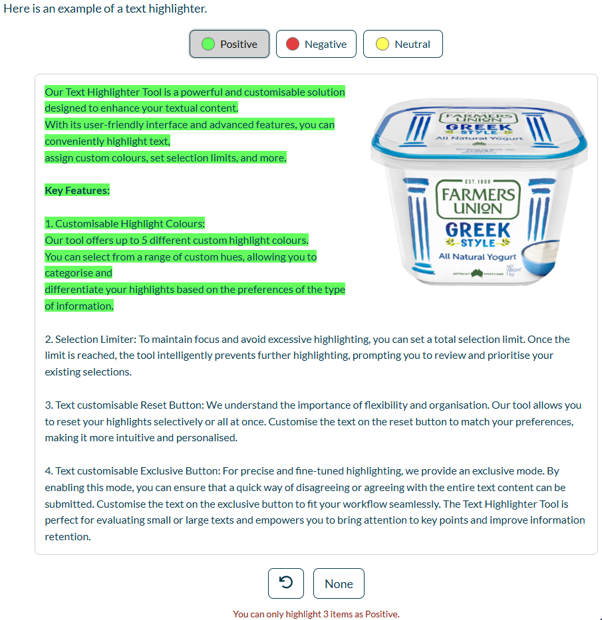
Setup:
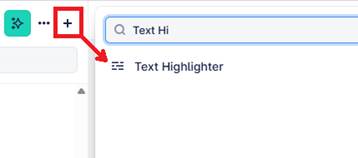
The Text Highlighter can be found in the “Add New Element” section as shown.
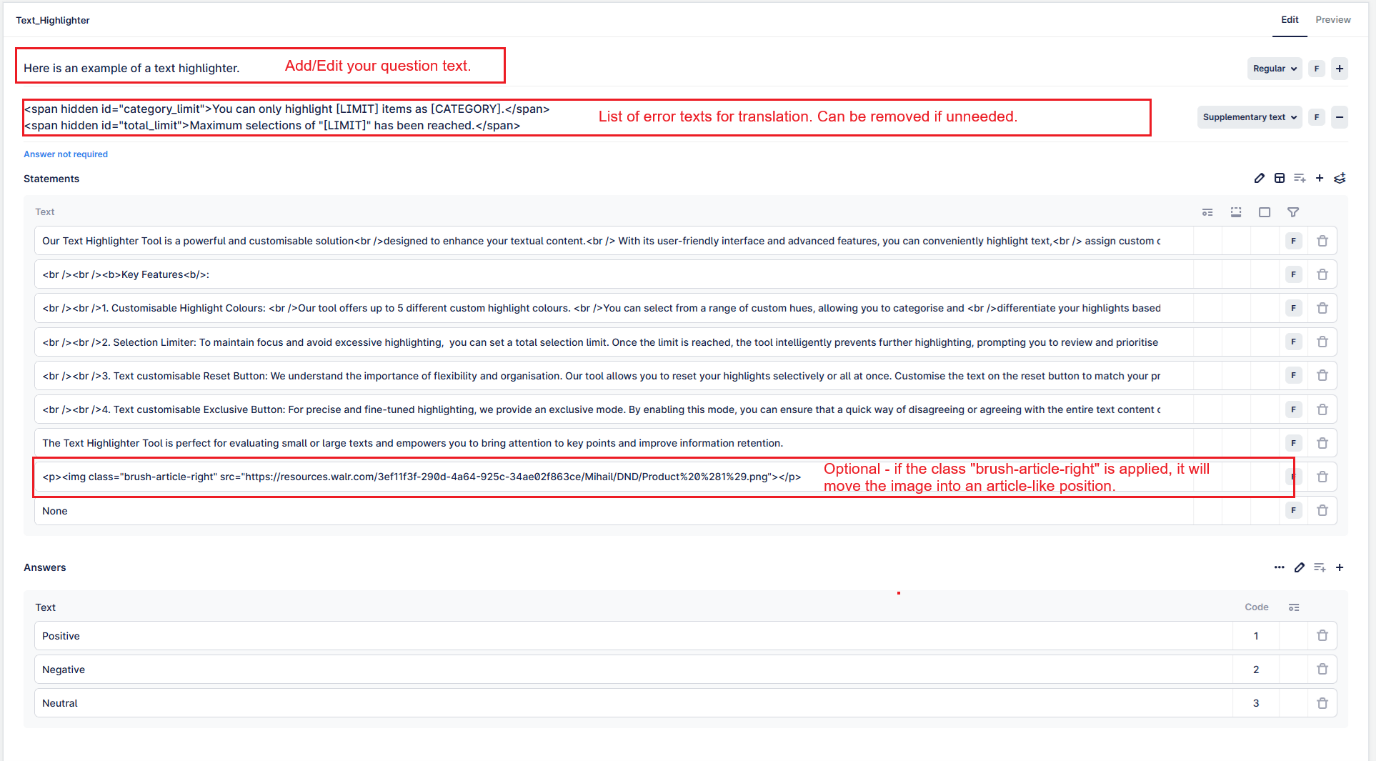
Here is an example of how to set up the question.
Text content
The text that respondents will highlight is added in the Statements section.
This can be a short paragraph, a long article, product copy, concept text, or any other written content.
HTML formatting can be used where needed, such as line breaks, bold text, or images.
Highlight categories
The Answers section is used to create the available highlight categories.
Example:
- Positive
- Negative
- Neutral
Respondents select a category and then highlight the relevant parts of the text.
Optional image positioning
Images can be added inside the text content.
If an image should sit beside the text in an article-style layout, a positioning class can be applied to the image.
Example:
<img class="brush-article-right" src="IMAGE_URL">
Using the class brush-article-right moves the image into a right-aligned article-style position, allowing the text to flow beside it on larger screens.
Using the class brush-article-left moves the image into a left-aligned article-style position.
On smaller mobile screens, the layout adapts so the image and text remain readable.
Selection limits
The Text Highlighter can support limits to control how much text can be highlighted.
This can include:
A total maximum number of highlights
A maximum number of highlights per category
If the respondent reaches a limit, an error message is shown.
Reset option
The Text Highlighter can include a reset option, allowing respondents to clear their highlights and start again.
The reset button text can be customised where required.
Desktop and mobile view
On desktop, the text is displayed in a readable article-style layout, with highlight categories available for selection.
On mobile, the layout adapts to the screen size so respondents can still read and highlight text comfortably.