
Using Walr’s “No Code” solution, our highly customisable custom questions allow you to modify them without needing to understand any coding or programming. Everything is presented through options in our “Visualisation”, allowing you to adjust the question to get exactly the format you need.
What is it?
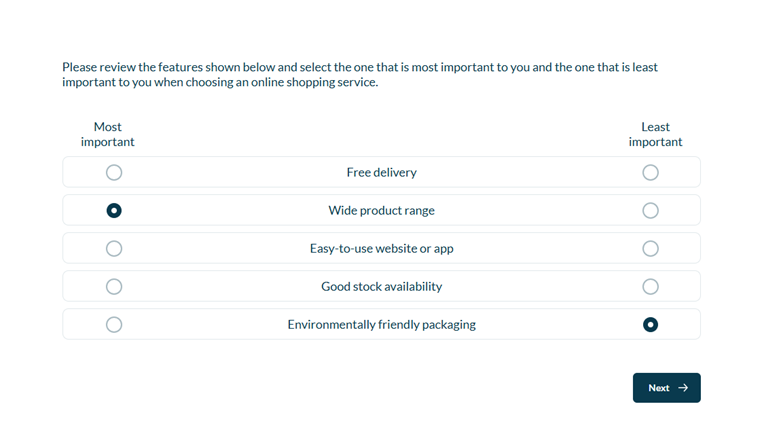
MaxDiff, also known as Maximum Difference Scaling or Best-Worst Scaling, asks respondents to choose the most preferred and least preferred option from a set of items, forcing a trade-off and avoiding traditional scales.
When to use it?
Use MaxDiff when you need respondents to make clear trade-offs between different options, such as features, claims, brands, benefits, or product ideas. It is useful when a simple rating scale may not give enough separation between items.
What languages are supported?
All Survey Builder languages.
Can I test it?
Survey link: https://survey.walr.com/pXAMk7?qq=25
Data
The underlying question type for this question is standard single select grid.

In our Analysis & reporting tool:
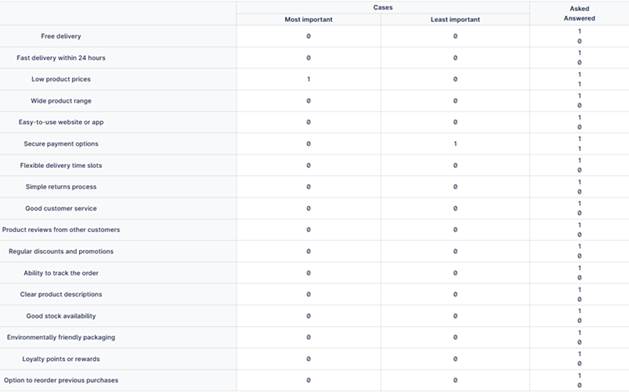
Example:
Setup:
Before adding the MaxDiff, you need to create a question which will hold the version.
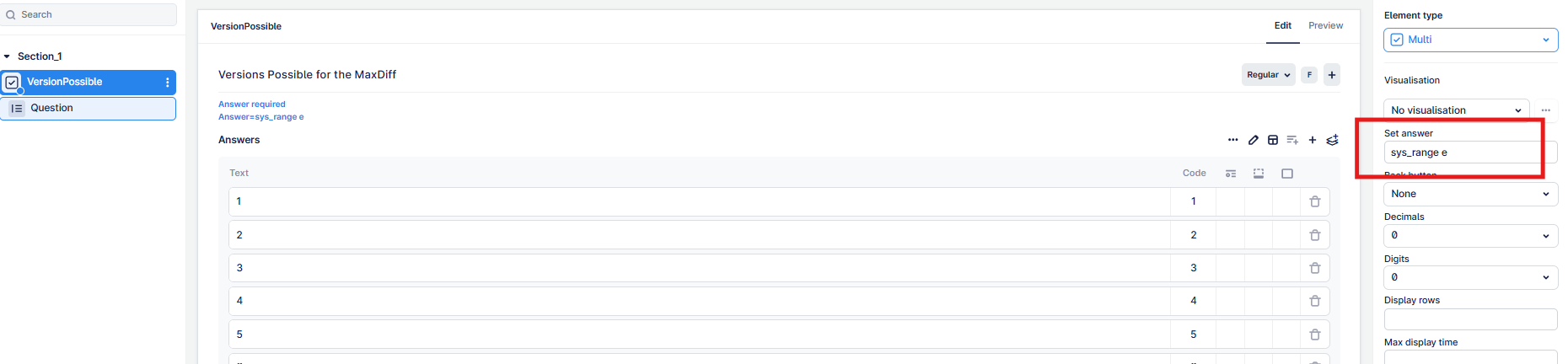
- Add a multiple select question with a row for each numbered version, so if you have 50 versions, you need 50 rows numbered 1-50. Note that we need ot pick up the number here so don't add any additional text like "version". Just the number.
- Add "sys_range c" to the Set Answer box as shown. This will set all 50 rows as answered, making them all available for the least full quota.
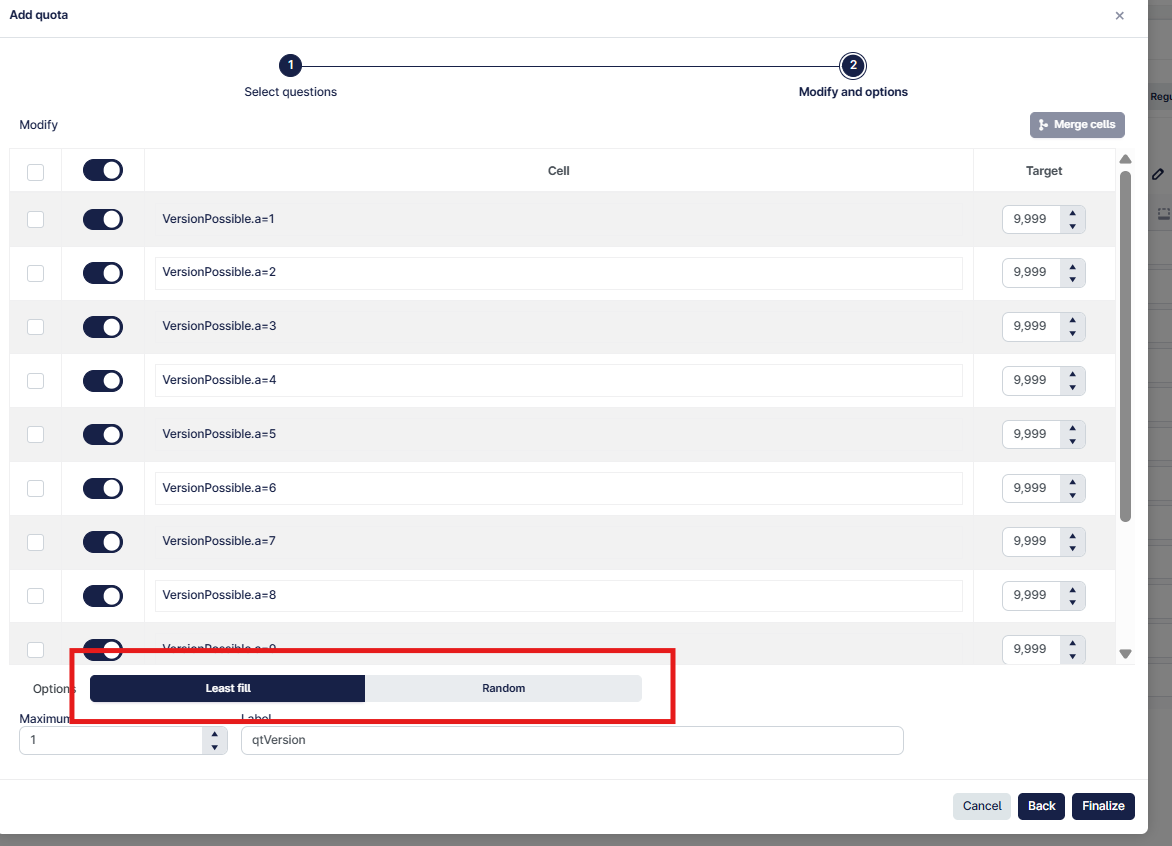
- Now add a quota and select the question you have created as the source, I have added a quota called qtVersion. Note the highlighted box below, which allows for a "least fill" (the one with the lowest count will always be selected, therefore achieving a fairly equal balance across all versions, or "random" which will allocate in random fashion so you will end up with an unequal, but random, balance.
- Note "maximum" is how many it should select, in this case we only ever want to select 1 version.
To ensure our MaxDiff is asked the correct number of times, add a new "section", and click on the 3 dots, going into the section options, and set the "loop section" to however many screens your design needs to be shown. e.g. if you have to show 12 screens, set the loop value to 12.
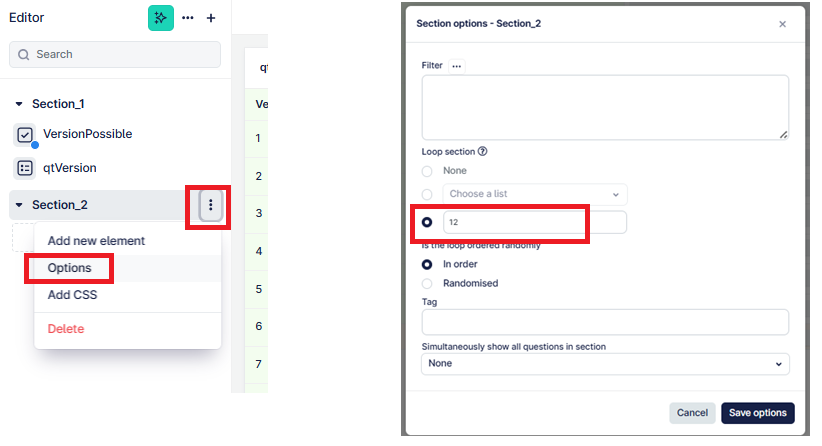
The MaxDiff question can be found in the “Add New Element” section. Add this to the new section you created. Note that you don't want any other question in this section otherwise they too will loop however many times you have set.
Here is an example of how to set up the question.
- The MaxDiff question uses the following naming format, whereby you must add this to the end of your question name “_$cnt;” -- MXD_$cnt;
- In this format, $cnt; is the loop index. The same loop index is also used to select the correct screen/version from the design file. In Survey Builder, this automatically creates multiple versions of the question "_1", "_2" .. etc.
- In the supplementary text, add the following hidden span:
- <span hidden>Version number must be piped here!</span>
- Replace Version number must be piped here! with the piped value from the question that stores the design version. For example:
- <span hidden>{{\Version.a}}</span>
- This value tells the MaxDiff custom question which version of the design should be shown to the respondent.
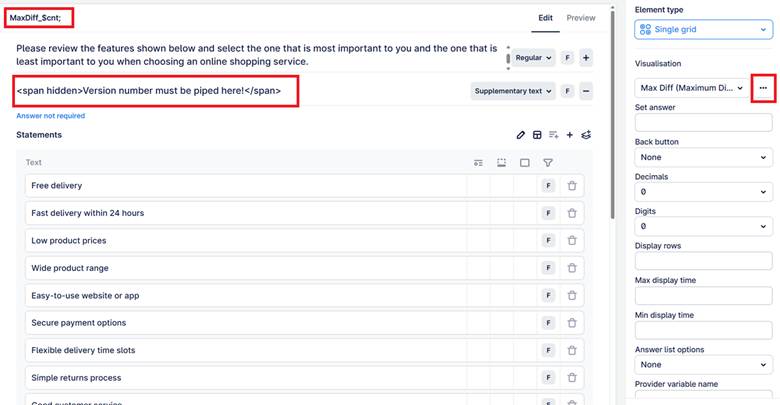
- Add the items you want respondents to compare as the grid rows.
- Add the MaxDiff response options as the grid columns, usually “Best” and “Worst” or “Most preferred” and “Least preferred”.
- Apply the MaxDiff custom question visualisation.
- Configure any available display or behaviour options in the Visualisation settings.
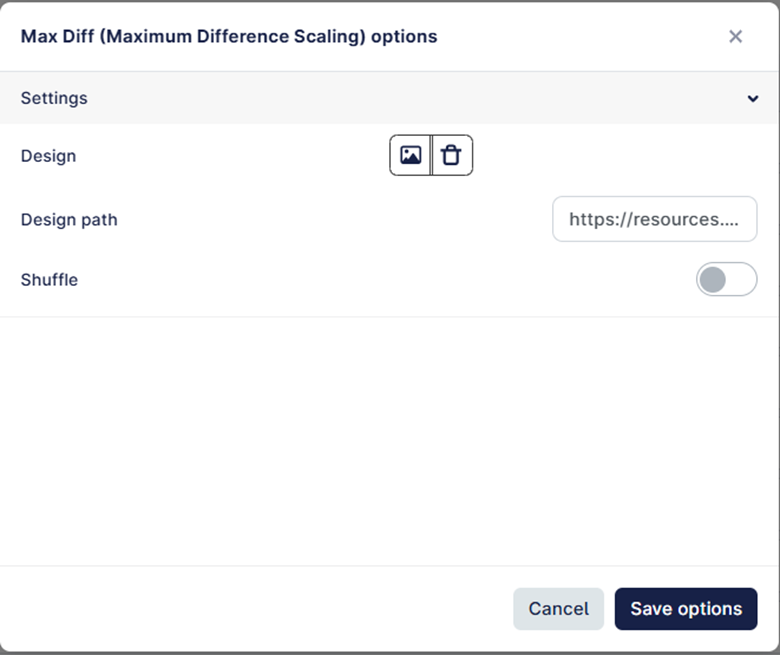
From the three-dot/settings button, you can configure the following options:
- Select a file from the library
Use this option to choose the design file directly from the file library. - Use a design file URL
Use this option if the design file is hosted externally or needs to be referenced by URL. - Shuffle answers
When this is set to true, the answer options will be shuffled before being shown to the respondent. Normally the way the answers are displayed would be handled by the design file, but should you require an additional layer of randomisation, then this option is available.
Note: The design file should be a tab delimited text file, an example is provided as a link at the end of this article. Any other format will mean your question will not load any of the statements. If you see this happening, re-check your file.
Important:
Each MaxDiff task should normally include a small set of items, so the respondent can compare them easily.
The same item should not be selected as both best and worst in the same task.
MaxDiff is most useful when the aim is to prioritise items, not simply measure agreement or satisfaction.
The quality of the results depends on having clear, comparable item text.
If you see the question load without any of the statements or elements you have added, this is because there is no design file attached to the question.