Using Walr’s “No Code” solution, our highly customisable custom questions allow you to modify them without needing to understand any coding or programming. Everything is presented through options in our “Visualisation”, allowing you to adjust the question to get exactly the format you need.
What is it?
An interactive question that totals up the inputs and validates against allowed values, total.
When to use it?
When you have an allocation that needs to sum up to a specific amount e.g. 100%
What languages are supported?
All Survey Builder languages.
Custom messages can be provided via the question so they can be translated (example provided below).
Can I test it?
Survey link: https://survey.walr.com/pXAMk7?qq=4
Data
The underlying question type for this question is numeric.

In our Analysis & reporting tool:
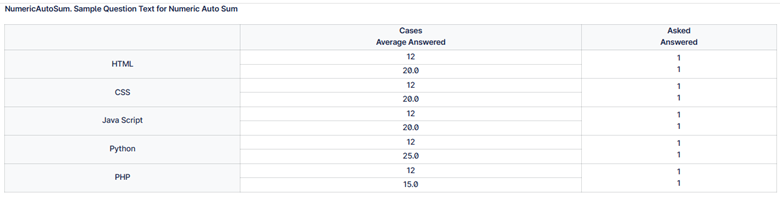
Example:
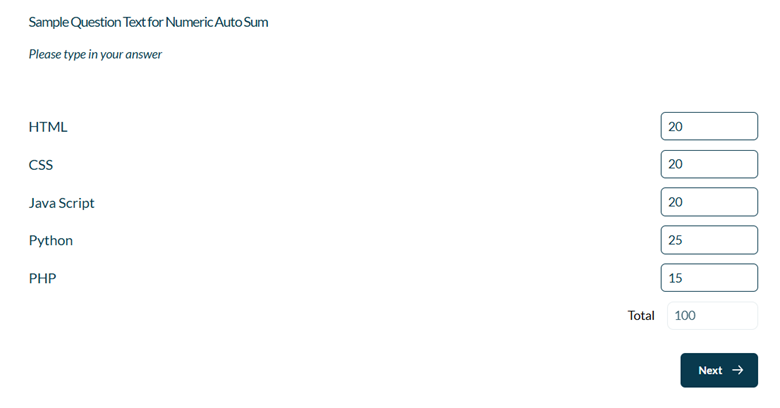
Setup:
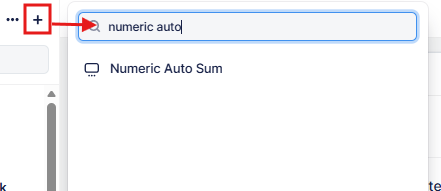
The Numeric Auto Sum can be found in the “Add New Element” section as shown.
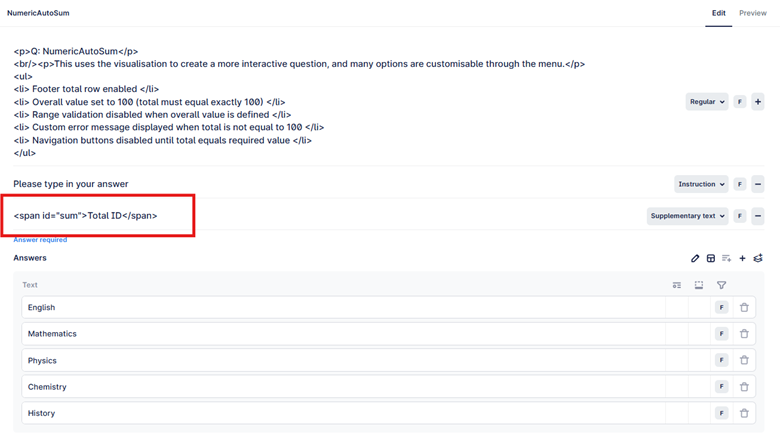
Here is an example of how to set up the question.
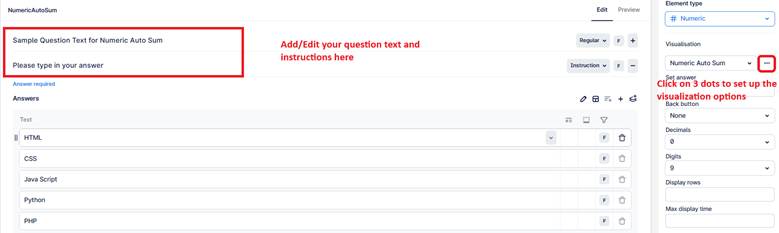
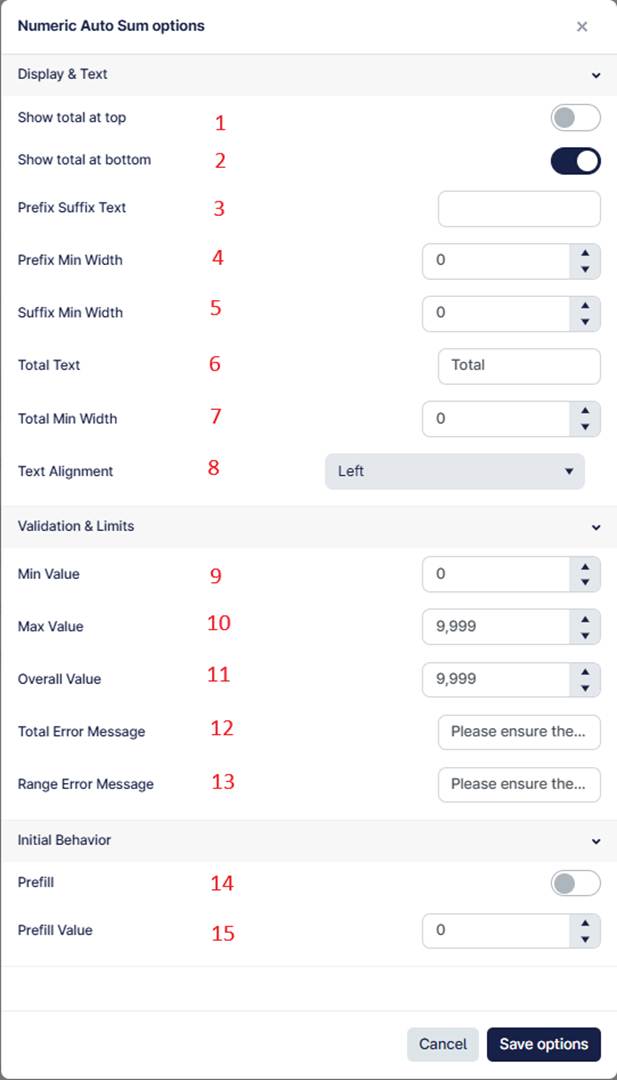
This question applies a Numeric Sum validation rule to a numeric question. It automatically calculates the total of all numeric inputs and validates the sum based on defined limits.
- When enabled, displays the total row (and sum) at the top of the question.
- When enabled, displays the total row (and sum) at the bottom of the question.
- Defines optional prefix and suffix text shown beside each numeric input, pipe-separated: Prefix|Suffix e.g. Hours|Minutes
- Sets the minimum width (in pixels) for the prefix container.
- Sets the minimum width (in pixels) for the suffix container.
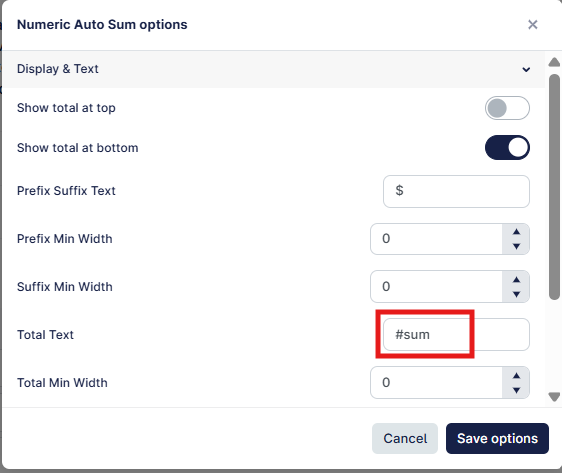
- Defines the label text shown on the total row (e.g. “Total”).
- Sets the minimum width (in pixels) for the total label container.
- Controls the text alignment inside the numeric input fields (left, center, right).
- Sets the minimum allowed total value required to proceed.
- Sets the maximum allowed total value required to proceed.
- If greater than 0, forces the total to equal this exact value in order to proceed.
- Defines the error message shown when the total does not equal the required overall value. Use [val] as placeholder e.g. Please ensure the total is equal to [val].
- Defines the error message shown when the total is outside the allowed range. Use [Min] and [Max] as placeholders e.g. Please ensure the total is between [Min] and [Max].
- When enabled, pre-fills all numeric input fields with a default value.
- Defines the value used when prefill is enabled.
How It Works:
- The script continuously calculates the sum of all numeric inputs.
- The calculated total is displayed in the header and/or footer row (if enabled).
- If validation rules are not met:
- An error message is displayed.
- Navigation buttons are disabled.
Validation Logic Priority:
- If Overall Value is greater than 0 => the total must equal this value exactly.
- If Overall Value is 0 => the total must fall between Min Value and Max Value.
- If total is outside the allowed range => navigation is disabled and an error message is shown when trying to proceed.
Labels and values can be set up in the example below so they can be dynamically added to the question, or used in translations.