
Using Walr’s “No Code” solution, our highly customisable custom questions allow you to modify them without needing to understand any coding or programming.
What is it?
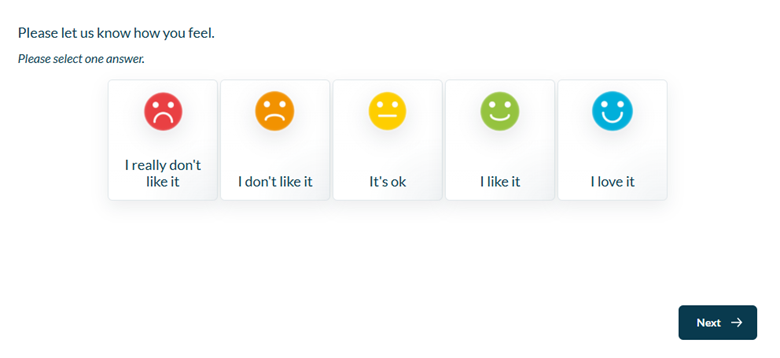
This module transforms a standard single-select question into a visual Mood Rating layout. On desktop, the answer options are displayed in a horizontal card layout, while on mobile they automatically switch to a vertical stacked layout for better usability.
When to use it?
When respondents need to select a single mood, feeling, or sentiment from a set of visually represented options (e.g., emojis or icons).
What languages are supported?
All Survey Builder languages.
Can I test it?
Survey link: https://survey.walr.com/pXAMk7?qq=20
Data
The question type is a standard single response question.

In our Analysis & reporting tool:
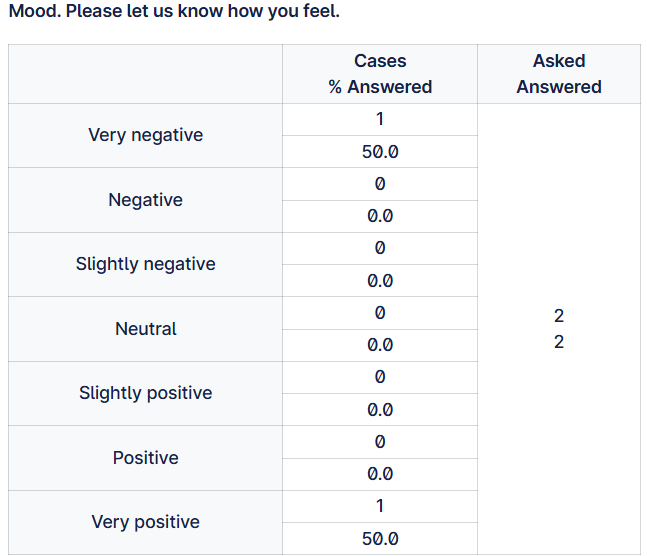
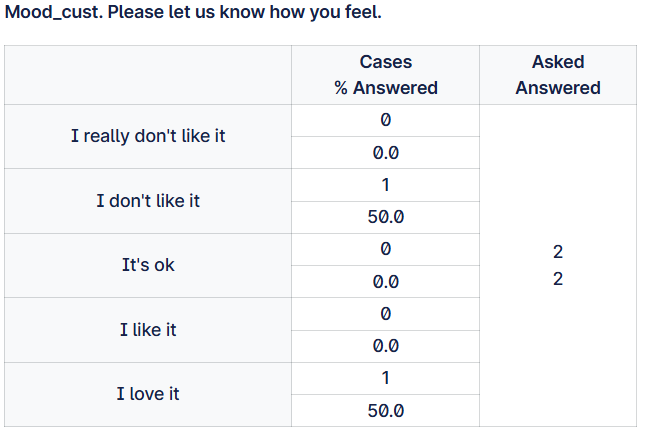
Example:
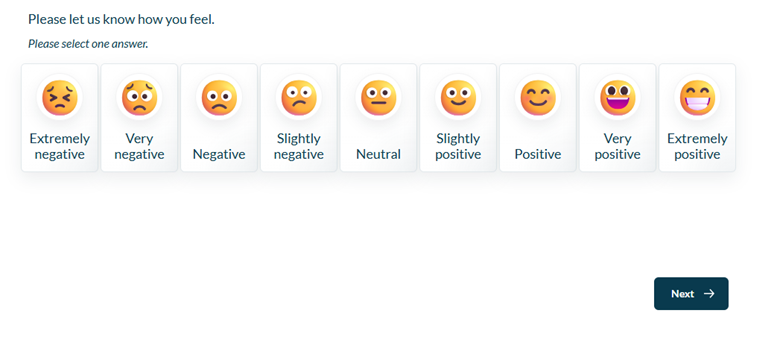
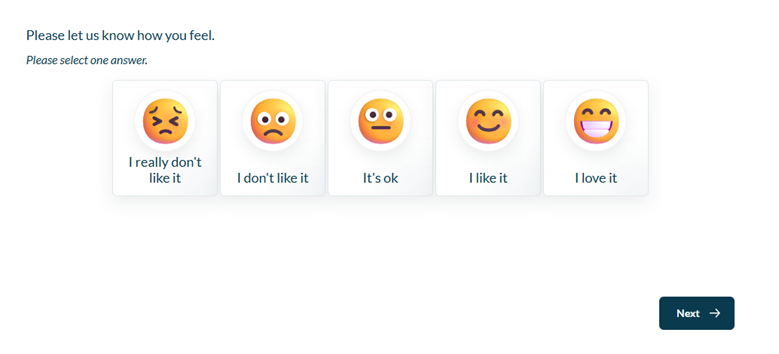
OR if you use a custom image, you can use a pipe separated list of URLs:
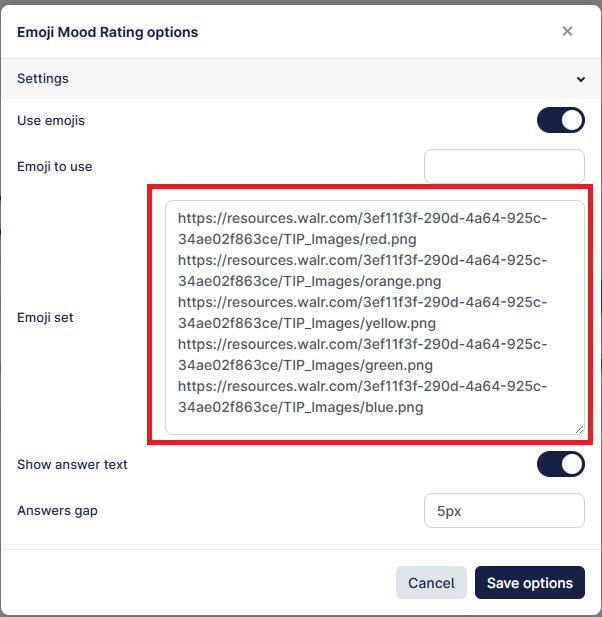 https://resources.walr.com/3ef11f3f-290d-4a64-925c-34ae02f863ce/TIP_Images/red.png
https://resources.walr.com/3ef11f3f-290d-4a64-925c-34ae02f863ce/TIP_Images/orange.png https://resources.walr.com/3ef11f3f-290d-4a64-925c-34ae02f863ce/TIP_Images/yellow.png https://resources.walr.com/3ef11f3f-290d-4a64-925c-34ae02f863ce/TIP_Images/green.png
https://resources.walr.com/3ef11f3f-290d-4a64-925c-34ae02f863ce/TIP_Images/blue.png




which will produce the below result
Setup:
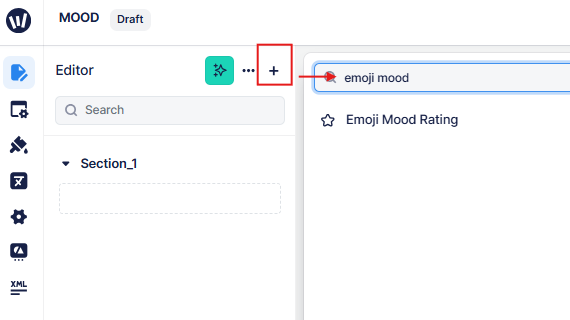
The Emoji (Mood Ratings) can be found in the “Add New Element” section as shown.
Here is an example of how to set up the question.
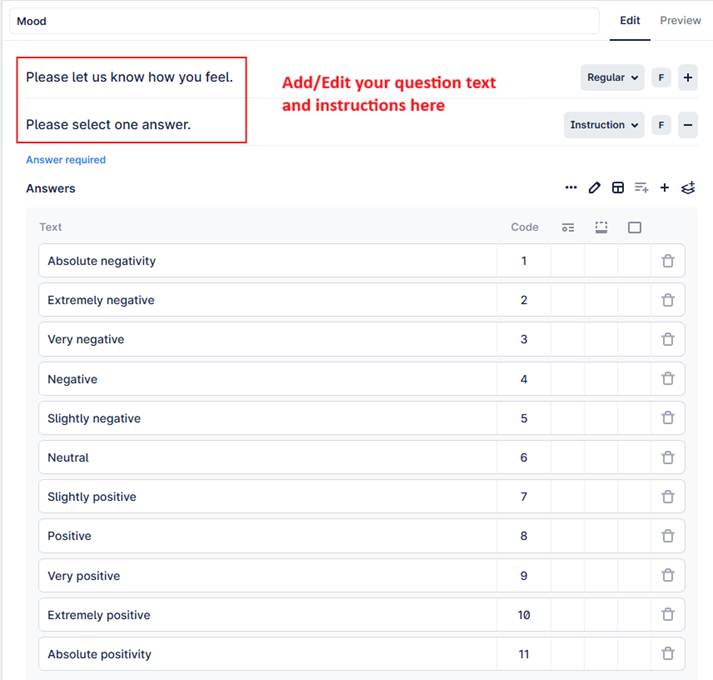
The question comes with smiley face images, but you are free to change the images to your own versions; you can also change the number of responses. The question functionality will remain the same.
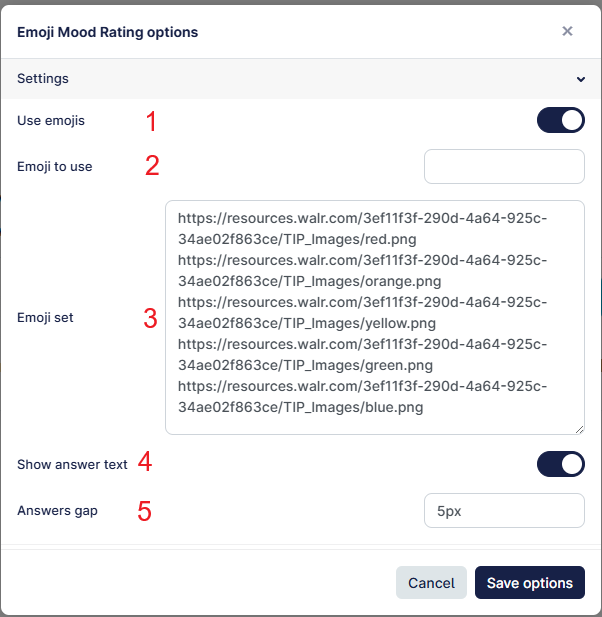
1. Use emojis
Enables emojis to be displayed above each answer option. If this is switched on and no custom emoji set is provided, the question will use the default device emojis. These emojis may look slightly different depending on the respondent’s device, browser, or operating system.
2. Emoji scale values
Allows you to choose which emoji should be used for each rating point. Values should be entered from -5 to 5, where negative values represent negative sentiment, 0 is neutral, and positive values represent positive sentiment. Leave this blank to let the question automatically map the emojis based on the number of answers.
3. Custom emoji set
Allows you to use your own emojis or emoji images instead of the default device emojis. This is useful when the emojis need to look the same for every respondent. Custom emojis can be added as normal emoji characters or as image URLs. The list can be separated by commas, pipes, or new lines.
4. Show answer text
Controls whether the answer labels are shown below the emojis. When enabled, respondents see both the emoji and the answer text. When disabled, only the emoji is shown visually, while the answer text remains available for accessibility.
5. Answers gap
Controls the spacing between answer cards. This can be used to increase or reduce the space between answers, especially when there are fewer answer options or when custom emoji images need more room. The value should be entered as a valid CSS size, for example 10px, 0.5rem, or clamp(3px, 1vw, 12px).