Use the “+” to access all the survey elements, from where you can add any questions, quotas, etc., and access your saved question library.
Select the question type you want to use and Survey Builder will automatically create a new container with your chosen question type inside it.
Highlighted below are the Default Questions. All other elements after these are called Custom Questions, and these can be added and modified without the need for editing JavaScript.
Please see the Custom Question section for details and usage of each. This will continue to be updated as we add more of these question types. If there is a specific question you don’t see on this list get in touch with your Account Manager and our Customer Success team can review this with you.
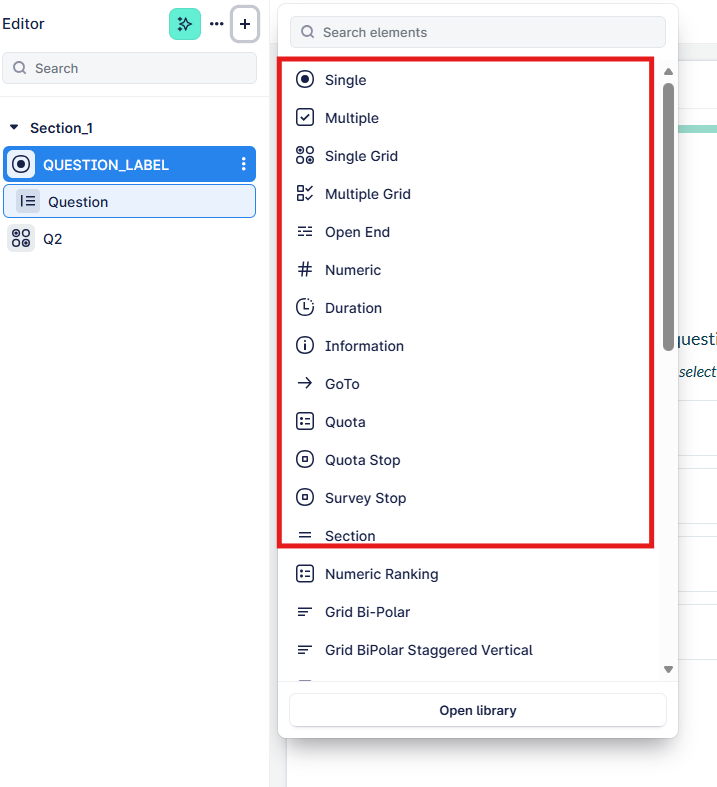
All Custom Questions can be added as you would any Default Question.
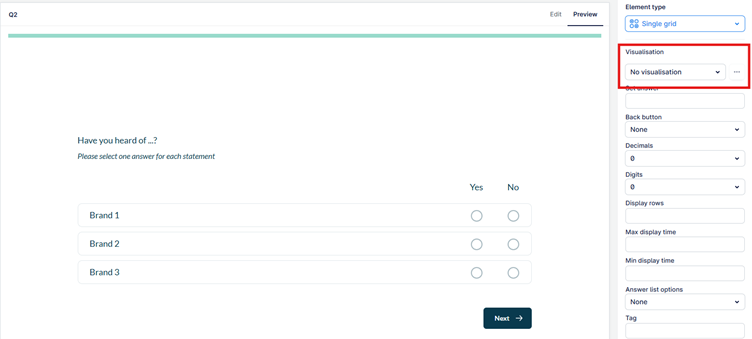
Once added you can adjust the Visualisation through the menu options.
For example, a Grid question without Visualisation would look like this in the preview:
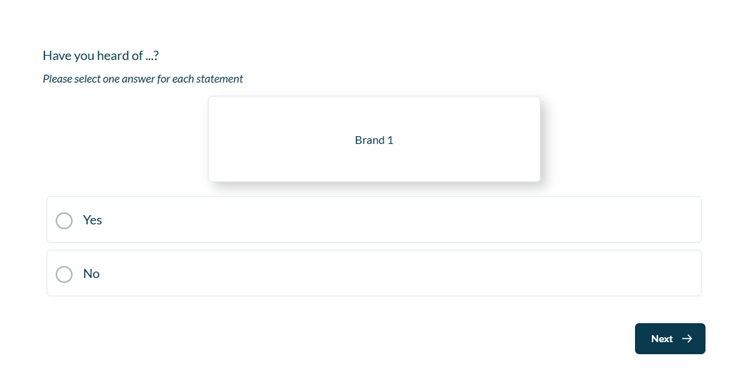
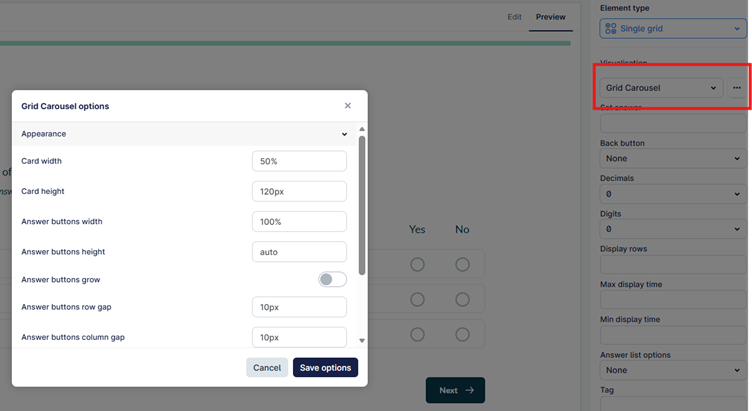
If we change the Visualistion to a “Grid Carousel” via the drop-down menu and click on the 3 dots we can now open customisation options that will allow you to adjust certain visual elements and interactions. The options will dynamically adjust the code in the background, so you never need to touch that side of it.
Our Grid question now looks like this: