Please review the video for a quick tour of Survey Builder.
Each topic will be covered in more detail.
You can access your survey from the “recent projects” list if you have already access previously.
Or you can navigate to the project, either from “your projects” or the project element on the navigation bar.
When you open your survey you will see new navigation options on the left side:
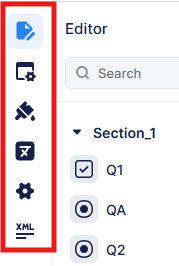
Editor, where you can create the questions
Logic, where you can adjust filters and masking (answer control), control randomization and add skip functionality, and custom error messages.
Themes, where you can adjust how your survey looks by creating a new theme, adjusting a current one, or applying a pre-built one.
Languages, where you can add or remove languages; timport/export translation files; export word version of the survey.
Settings, where you can adjust project specific values such as logo, showing/hiding the back button, progress bar, and also how to control survey resuming.
XML, the view gives you read-only access to the survey XML, used to review the whole survey in one place, including any logic, filtering, alternate languages, amongst other things.
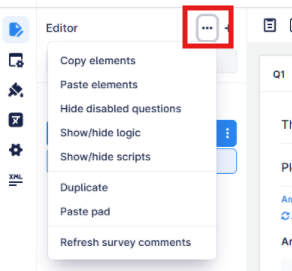
This menu allows you to access settings like copy/paste or to show logic/scripts present on questions.
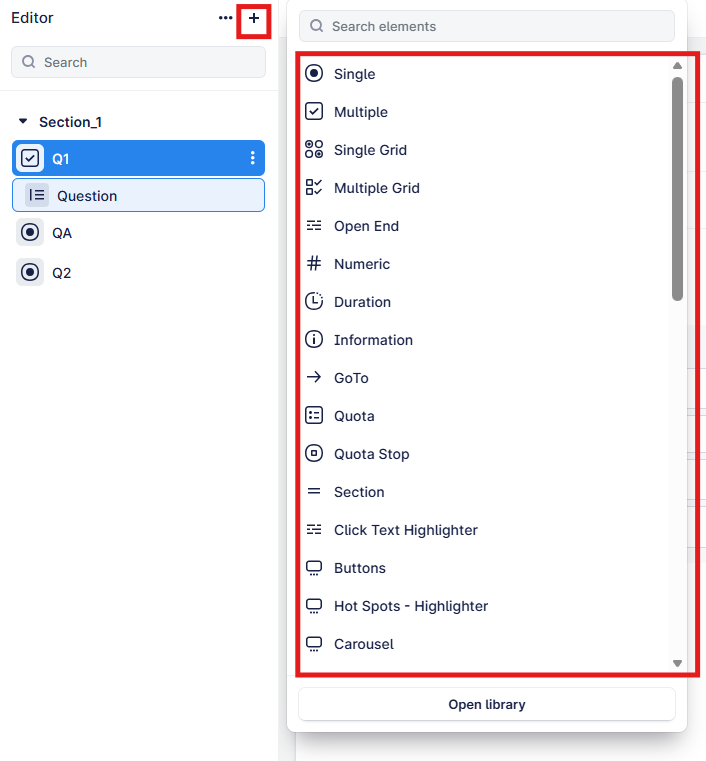
Use the “+” to access all the survey elements, from where you can add any questions, quotas, etc., and access your saved question library.
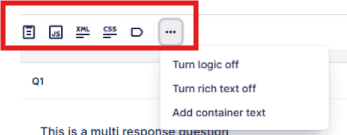
Here you can access:
Paste pad
question level JavaScript
question level CS
add/remove tags
or access the sub menu as displayed below
Overview, takes you to the survey overview page where you can view quota and fieldwork progress
Build, is where you can add your questions
Test, allows you to test the survey
Launch, access how you want to launch your survey, either through a simple invite link or set up a mailing campaign with a respondent list

The cloud icon, is the autosave icon and will change while any amends are being saved.
- à


 Validate your survey and run checks to identify any potential scripting or logic errors
 See the version history, each publish stores the full XML, which can be downloaded and reviewed to see what changes were made
 Show activity, which is usually found on the left side navigation is moved here for ease of access
You also have the option to close survey or publish, if you want to launch more changes
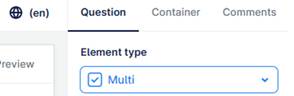
In the builder view we also have these additional options: Question, Container, Comments, which will be covered in more detail later.