Use the “+” to access all the survey elements, from where you can add any questions, quotas, etc., and access your saved question library.
Select the question type you want to use and Survey Builder will automatically create a new container with your chosen question type inside it.
All elements after these are called Custom Questions, and these can be added and modified without the need for editing JavaScript.
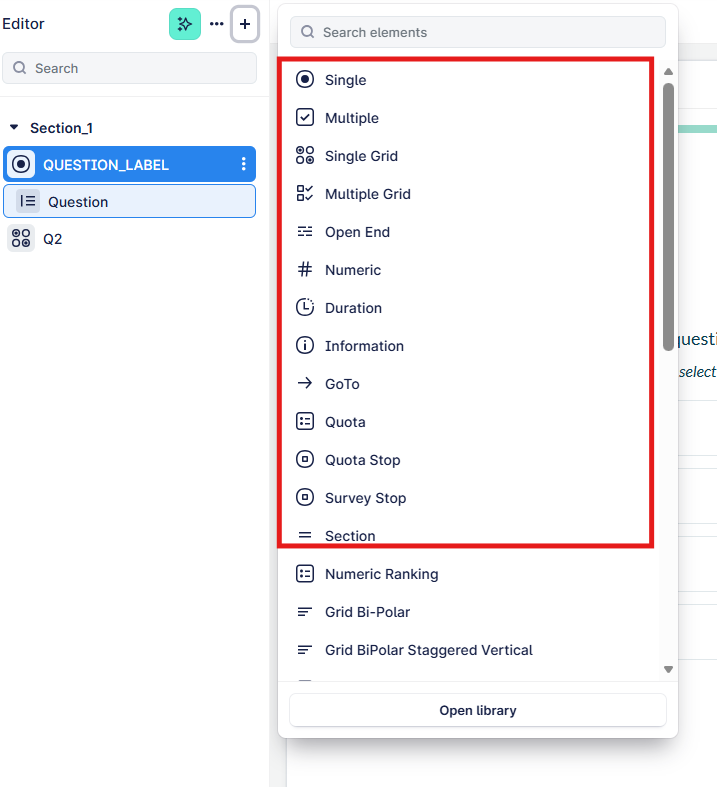
Question | Definition |
Single | Pick one option from a list |
Multiple | Pick multiple options from a list |
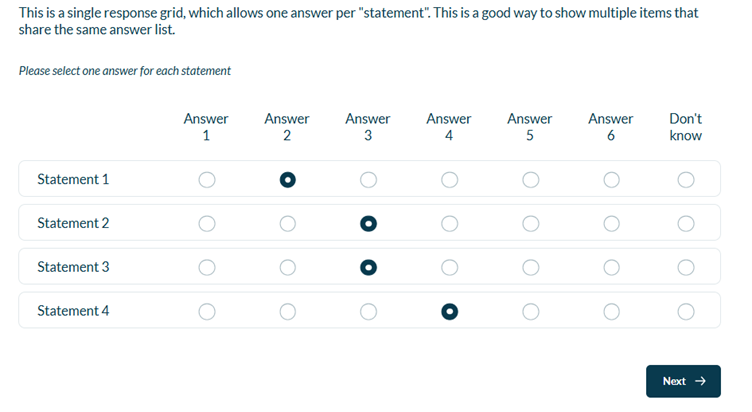
Single Grid | Pick one option per column in a grid |
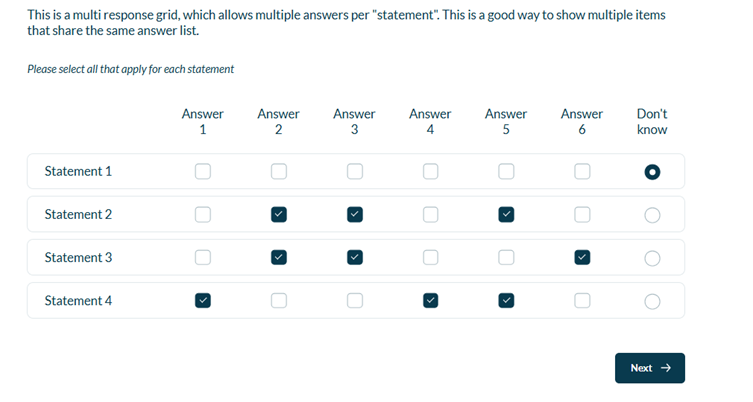
Multiple Grid | Pick multiple options per column in a grid |
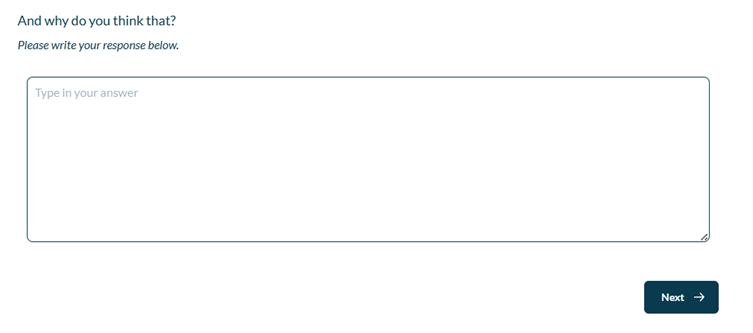
Open End | Reply with a text-based answer |
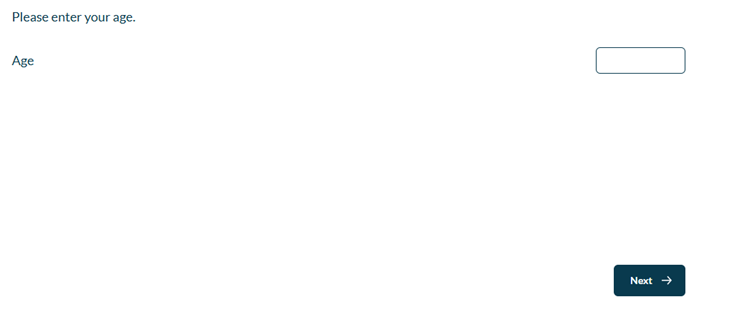
Numeric | Reply with a whole number or decimal answer |
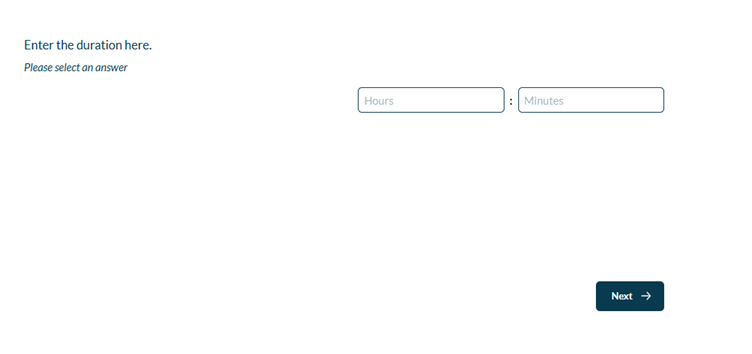
Duration | Reply with a duration (e.g. hours and minutes) |
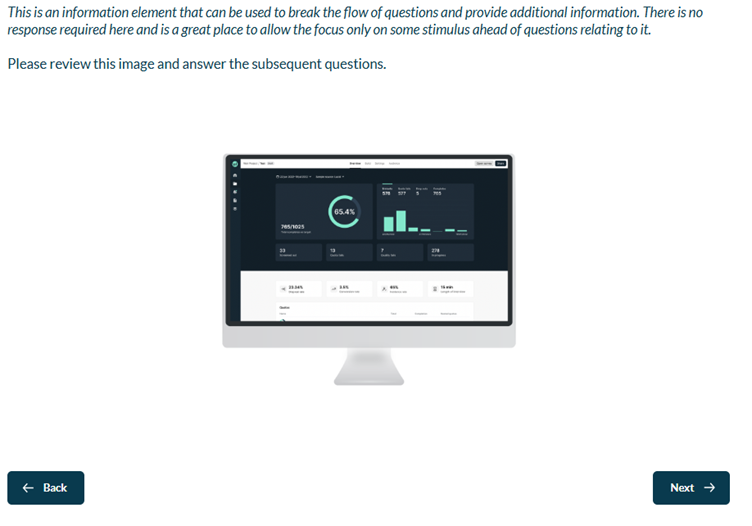
Information | Displays instructions, a definition, or other information |
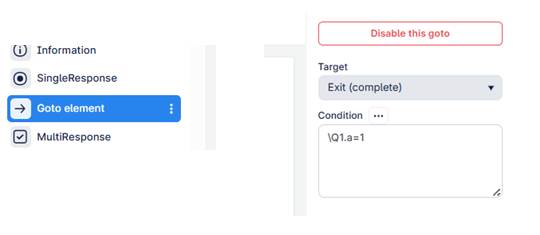
Go To | Skip to a specific question or question and answer choice |
Quota | Set-up the quota or number of respondents you want to capture by type |
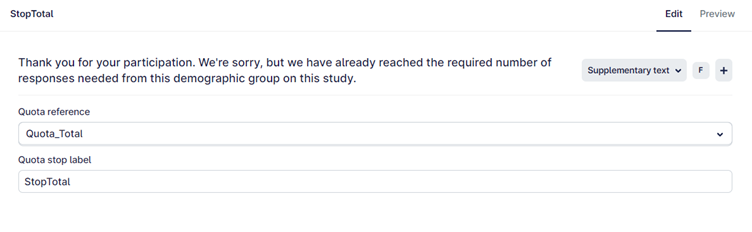
Quota Stop | Stops the interview when the defined quotas are full |
Survey Stop | Sop element to terminate surveys with status recording |
Section | Add a new section to the survey |
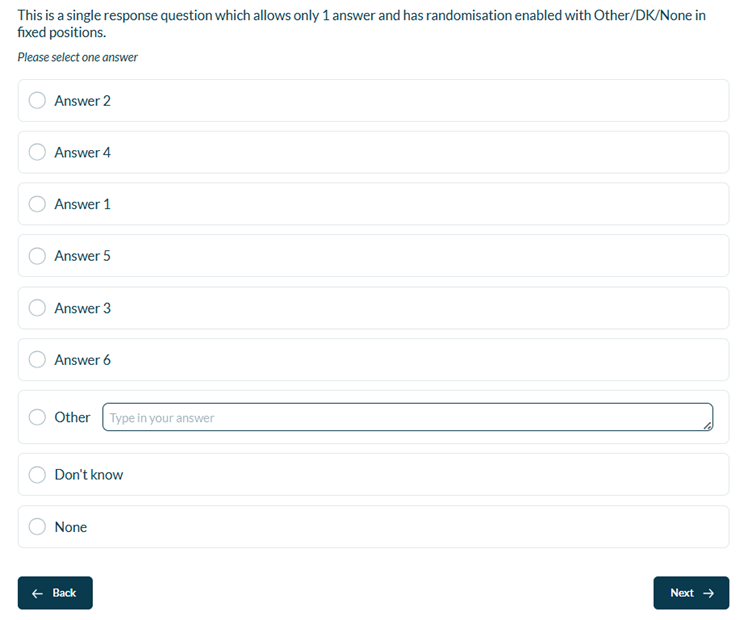
Single:
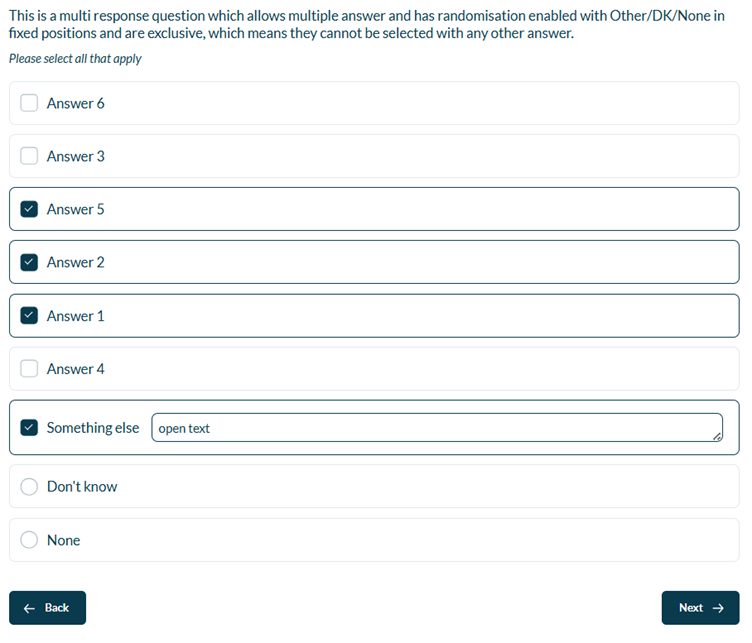
Multiple:
Single Grid:
Multi Grid:
Open End:
Ask the respondent to answer via free form text response.
Numeric:
Asks the respondent to reply with a whole number or decimal answer.
Additional logic can be set to limit the answer to a range.
Duration:
Asks the respondent to reply with a duration (e.g. hours and minutes).
Information:
GoTo:
Skip to a specific question or exit the survey. In this example, if the respondent selects only code 1 at Q1, they will exit the survey as a complete. If the respondent picks any other answer, then they will proceed to the next question.
Quota:
Set-up the quota or number of respondents you want to capture by type (e.g. number of respondents you want for a certain age range or gender). In this example, we have a quota for overall total set to n=1050.
Quota Set-up:
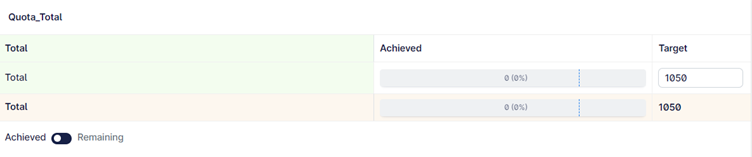
Quota display when the survey is live:

Quota Stop: Stops the interview when the defined quotas are full. In the example below, there is a Quota stop for when the blue quota reaches the target on n=100 respondents.
Survey Stop:
With the Survey Stop, we can set any status, linking it to the question or quota and even apply a filter.
This reference will appear in the overview page, so you can track how many respondents have met this criteria.

Section:
Sections are a good way to manage parts of your survey that go together e.g. demographics, screener section. You can apply filter conditions to the sections so all the questions within are only asked if the overall condition is met.
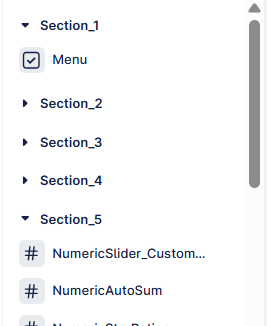
Sections can be collapsed in longer surveys.
Sections also function as loop controls, allowing you to loop questions a set number of time, or via a list.